Managing documents
Build your team's document library in the portal — folders, visibility, PDF uploads, and (on Enterprise) linking documents to types and features.
Platform: Portal
The document library is managed from Manage → Documents in the portal. The page is available to Admin and Manager users — other users won't see the menu item.
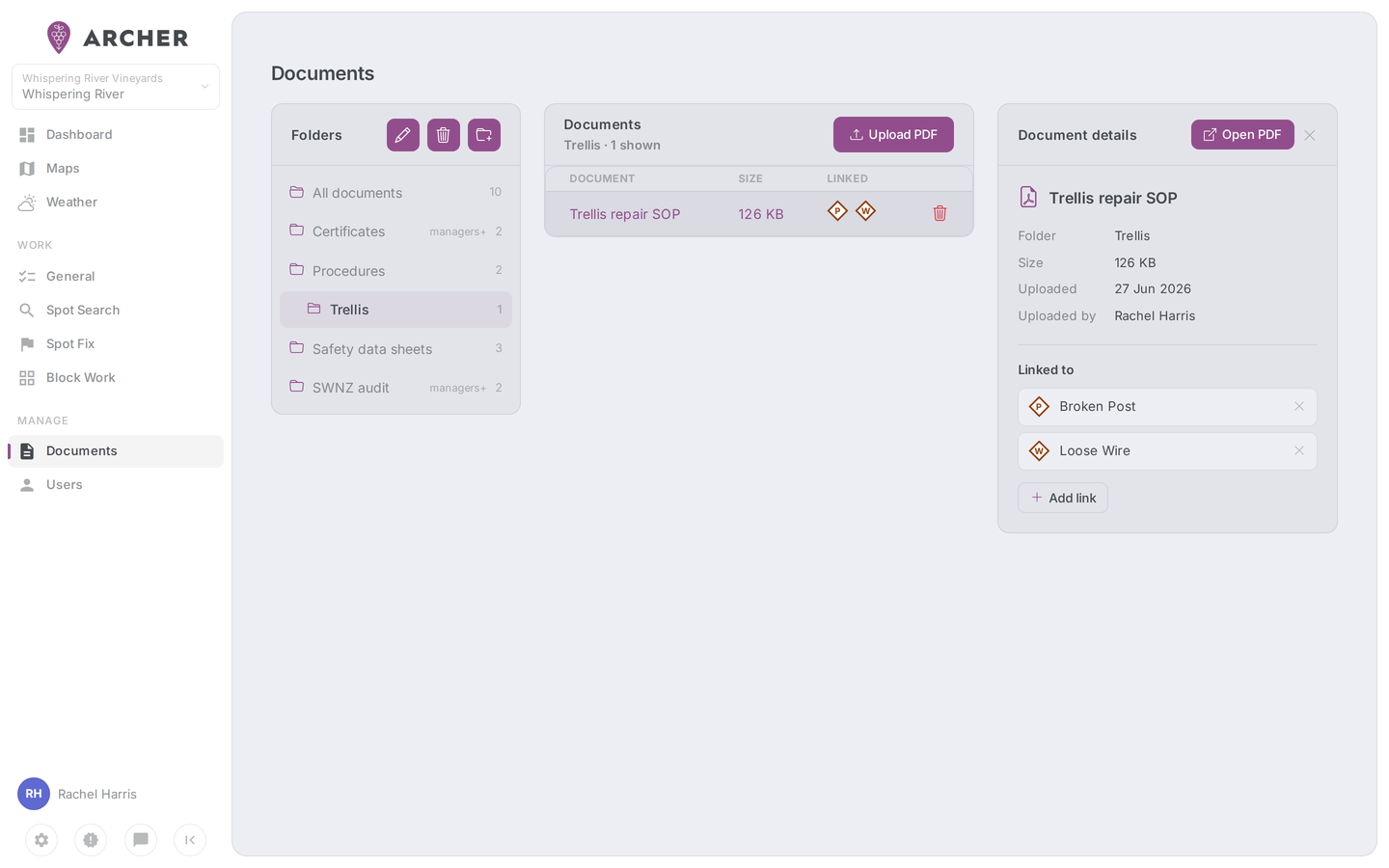
The page has three parts, left to right:
- Folders — the folder tree, starting with All documents. Each folder shows a count of the documents inside, and a small tag (members+, managers+, admins) when it's visible to fewer people than Everyone.
- Documents — the document list for the selected folder (10 per page), with each document's size and a Linked column showing what it's linked to.
- Document details — opens when you click a document: title, folder, size, upload date and uploader, an Open PDF button, and the document's links.
Creating a folder
Documents can only live inside folders, so start by creating one — the Upload PDF button stays disabled until at least one folder exists.
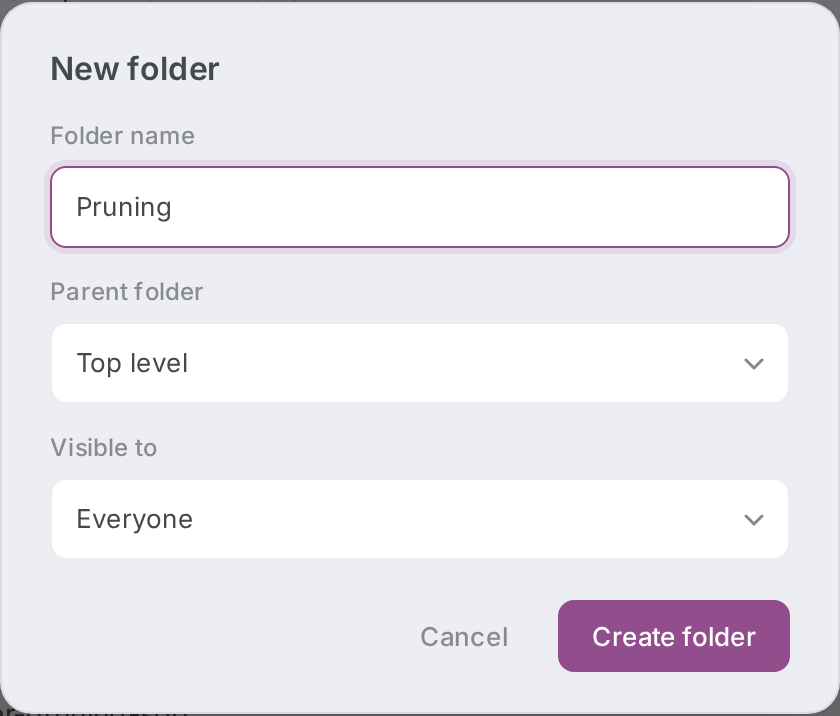
- Click the new folder button (folder-plus icon) at the top of the Folders card.
- Give the folder a name (for example, "Spraying").
- Pick a parent folder — Top level, or nest it inside an existing folder.
- Pick who it's visible to: Everyone, Members and above, Managers and above, or Admins only.
- Click Create folder.
How visibility works
Every document inherits its folder's audience — there's no per-document setting. Two rules keep the audience picker honest, and the dialog greys out options that would break them:
- Nesting narrows. A folder can't be more open than its parent. If the parent is "Managers and above", a subfolder can't be "Everyone" — nesting inside a restricted folder only ever restricts further. The tree's tags always show the effective visibility, taking parents into account.
- You can't lock yourself out. You can't set an audience narrower than your own level — a manager can't create an "Admins only" folder they'd immediately lose sight of.
People marked as contractors in your organisation only ever see Everyone folders, regardless of their access level.
Renaming a folder or changing its visibility
Select the folder in the tree, then click the pencil button at the top of the Folders card. You can rename the folder and change its audience — the same visibility rules apply. (Folders can't be moved to a different parent.)
Deleting a folder
Select the folder and click the trash button. Deleting a folder deletes the folder, everything nested inside it, and all of their documents — the confirmation dialog tells you how many documents that is. This can't be undone.
Uploading a document
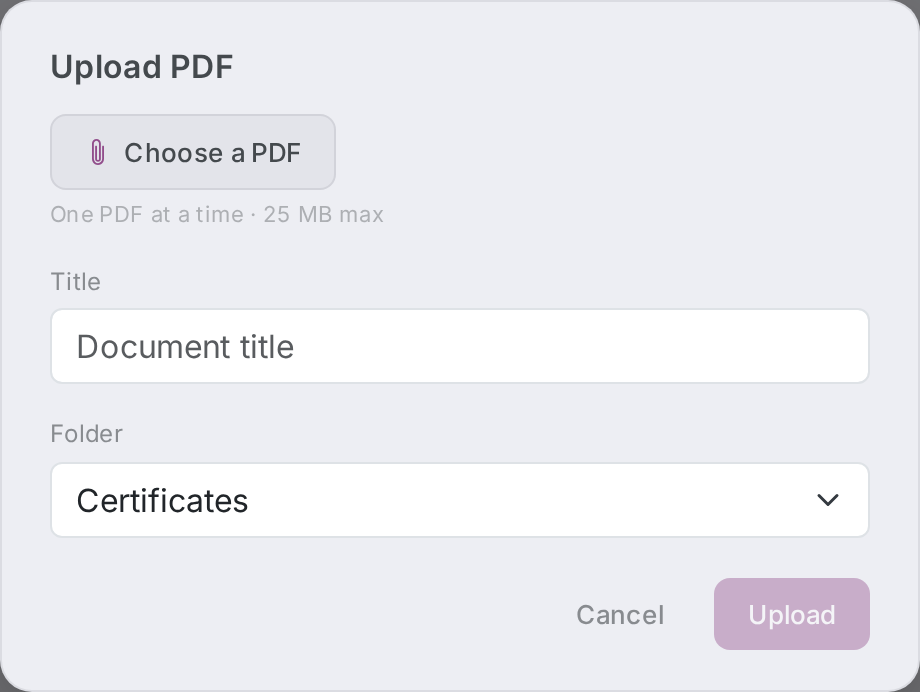
- Click Upload PDF at the top of the Documents card.
- Choose the file — PDF only, one at a time, 25 MB max.
- Give it a Title (this is the name people see in the app) and pick the destination Folder. Both are required.
- Click Upload.
The list jumps to the folder you uploaded into. Field users see the new document the next time their app syncs — which happens automatically when they open the library.
Deleting a document
Use the delete control on the document's row. The confirmation reads: "Remove this document? It will be hidden from the app and its cached copy purged." — once removed, the document disappears from the app on the next sync.
Linking documents (Enterprise)
On the Enterprise plan, a document can be linked to trouble-spot types, feature types, and specific features. Links are what power automatic attachment: when someone creates a Spot Fix or General work order in the portal, documents linked to the picked spots' types (or the picked features and their types) are attached to the work order automatically, ready for the field crew.
To link a document:
- Select the document and click Add link in the detail panel's Linked to section.
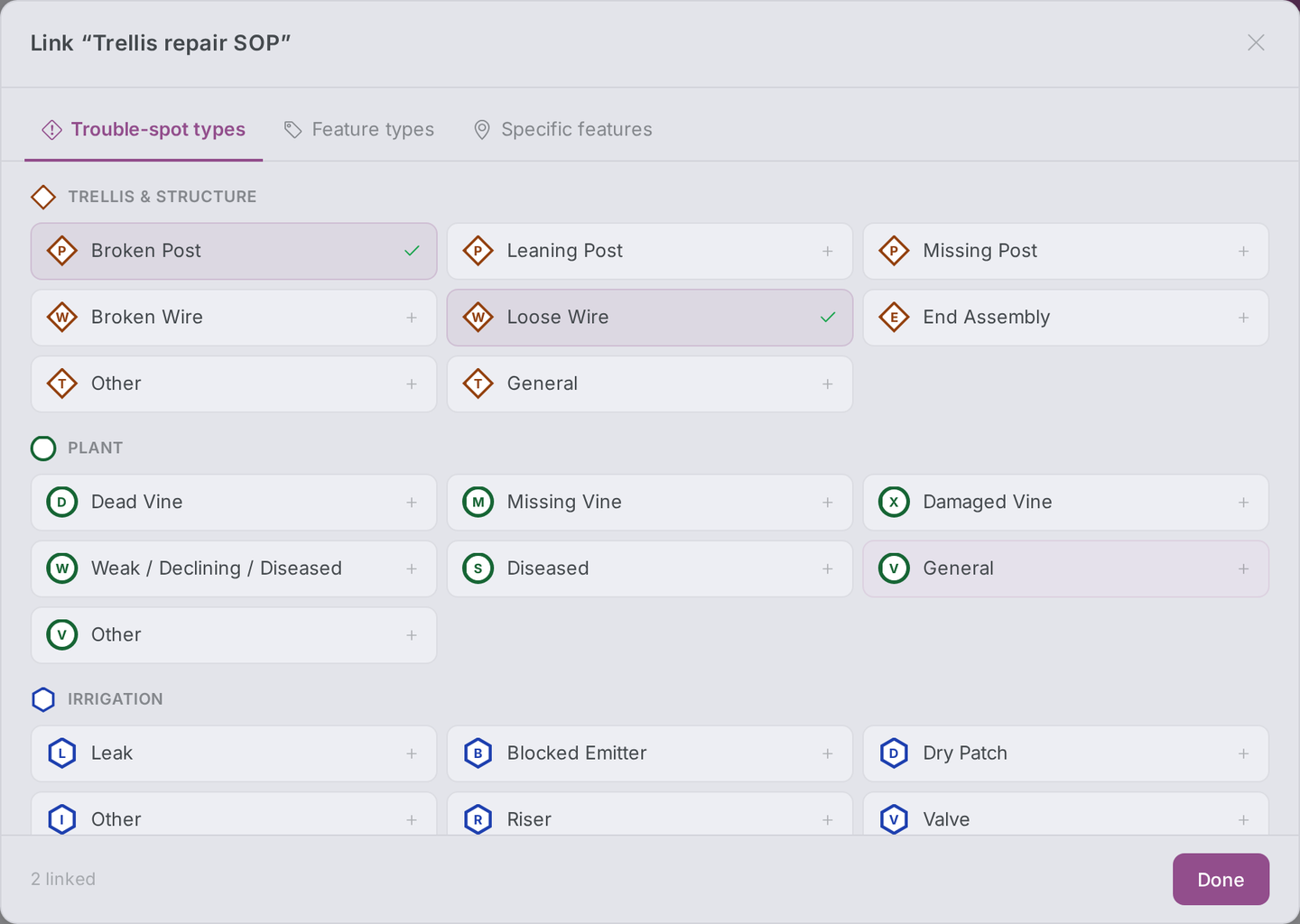
- The link dialog has three tabs:
- Trouble-spot types — the same categories and types your team reports in the field, shown with their map markers.
- Feature types — feature types shown with their icons.
- Specific features — pick a vineyard, then search and select an individual feature; the panel shows its location and details so you can confirm it's the right one.
- Click a type (or Link this feature) to link it — linked entries show a tick, and clicking again removes the link. Close with Done.
Everything a document is linked to shows as chips in the detail panel and as small icons in the list's Linked column.
Not on Enterprise? The library itself works the same on every plan. Instead of the Add link button, the detail panel shows: "Linking documents to trouble spots, features and work orders is available on Archer Enterprise." Removing existing links still works on any plan, so you can always clean up.