Documents in the field
Read your team's SOPs on the Archer app — browse the library, open PDFs, and keep them available offline.
Platform: Mobile (Archer app)
Everything your managers put in the document library is readable in the Archer app — and once you've opened a document, it stays readable with no signal at all.
Opening the library
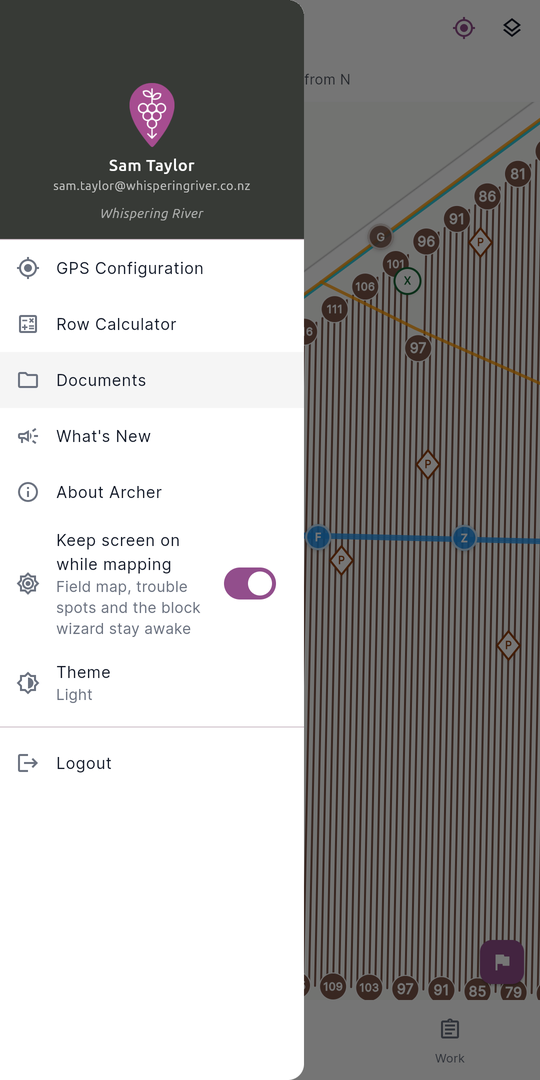
Open the menu (☰) and tap Documents. Pressing Back from the library always takes you straight back out — it never buries you in a stack of screens.
Browsing
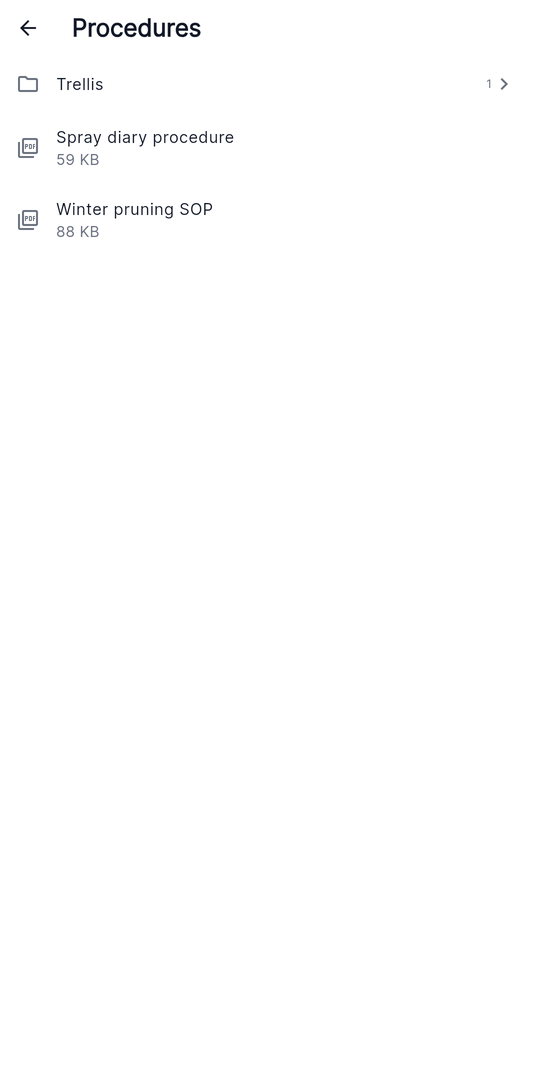
The library is a simple drill-down browser. At each level you see:
- Folders first, each with a count of the documents directly inside it. Tap a folder to open it.
- Documents below, listed alphabetically with a PDF icon and file size.
You only see the folders your role gives you access to — visibility is controlled per folder in the portal (see How visibility works). An empty level shows "No documents here yet."
Opening the library checks the server for changes, so a PDF uploaded in the portal a moment ago is already there. You can also pull down to refresh on any screen in the library. Browsing itself works offline — the folder structure is part of the app's normal data sync.
Reading a document
Tap a document to open it:
- First open needs a connection — a spinner appears on the row while the PDF downloads, and the file is saved on your phone.
- Every open after that is instant and works fully offline, in the vineyard, in the shed, anywhere.
The reader shows the document title in the top bar and supports pinch-to-zoom.
If you're offline and the document hasn't been downloaded yet, the app tells you: Couldn't open "…". Connect to the internet to download it the first time. — a good reason to tap through the documents you'll need before heading somewhere without signal.
The app always keeps the current version: if a document changes on the server, the fresh copy downloads the next time you open it, and documents deleted in the portal disappear from the library on the next sync.
Documents on a work order
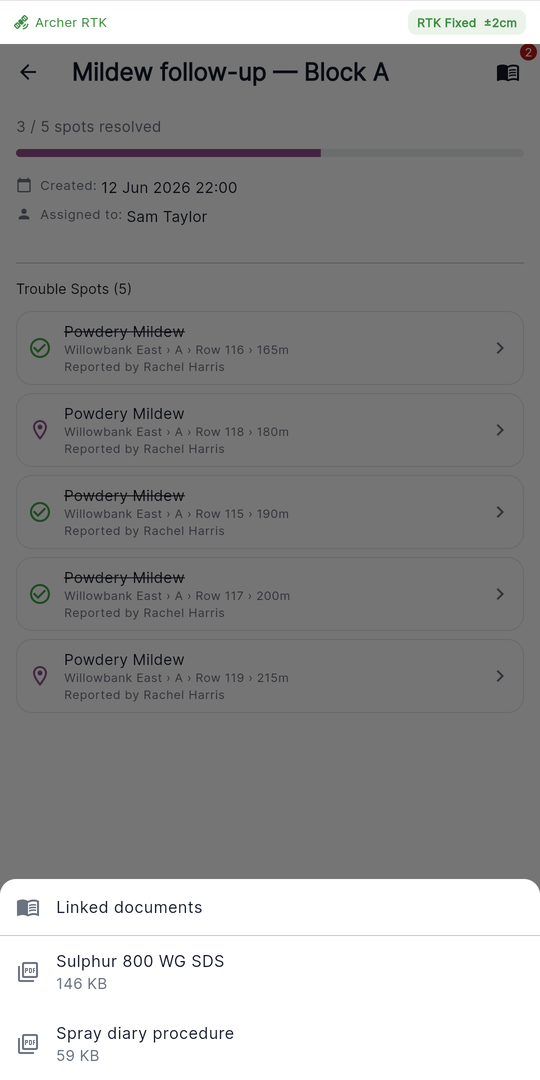
When a work order has documents attached, its detail screen shows a book icon in the top bar with a badge counting the documents you can access (no badge if that count is zero). Tap it to open the Linked documents sheet, then tap a document to read it — same download-once, offline-after flow as the library.
If the attached documents are all in folders your role can't see, tapping the icon shows "No documents you can access on this work order."