Resolution processes (enterprise)
Define the multi-step process a trouble spot of a given type goes through before it counts as resolved — an enterprise capability configured in the portal.
Platform: Portal (define) — the steps are then worked in the Archer app and the portal
By default, a trouble spot is resolved with a single mark complete. A resolution process replaces that for a chosen type with an ordered set of steps — for example Assess → Order part → Repair — and the spot only counts as resolved when the last step is done.
Defining resolution processes is an enterprise capability: it's available to organisations whose company is on the Enterprise plan. Working the steps in the field is not plan-gated — once a spot carries steps, anyone can complete them.
Opening the page
In the portal, go to Settings → Organisation → Resolution Processes (the /settings/resolution-processes page). The entry only appears for entitled organisations; opening the page directly on a non-entitled organisation returns you to Settings.
The designer
The left-hand list shows every trouble-spot type, grouped by category, with "N steps" against types that have a process and "—" against those that don't. Selecting a type opens its designer.
A type with no process shows: "No process yet — spots of this type resolve with a single 'mark complete'. Add a first step to define one."
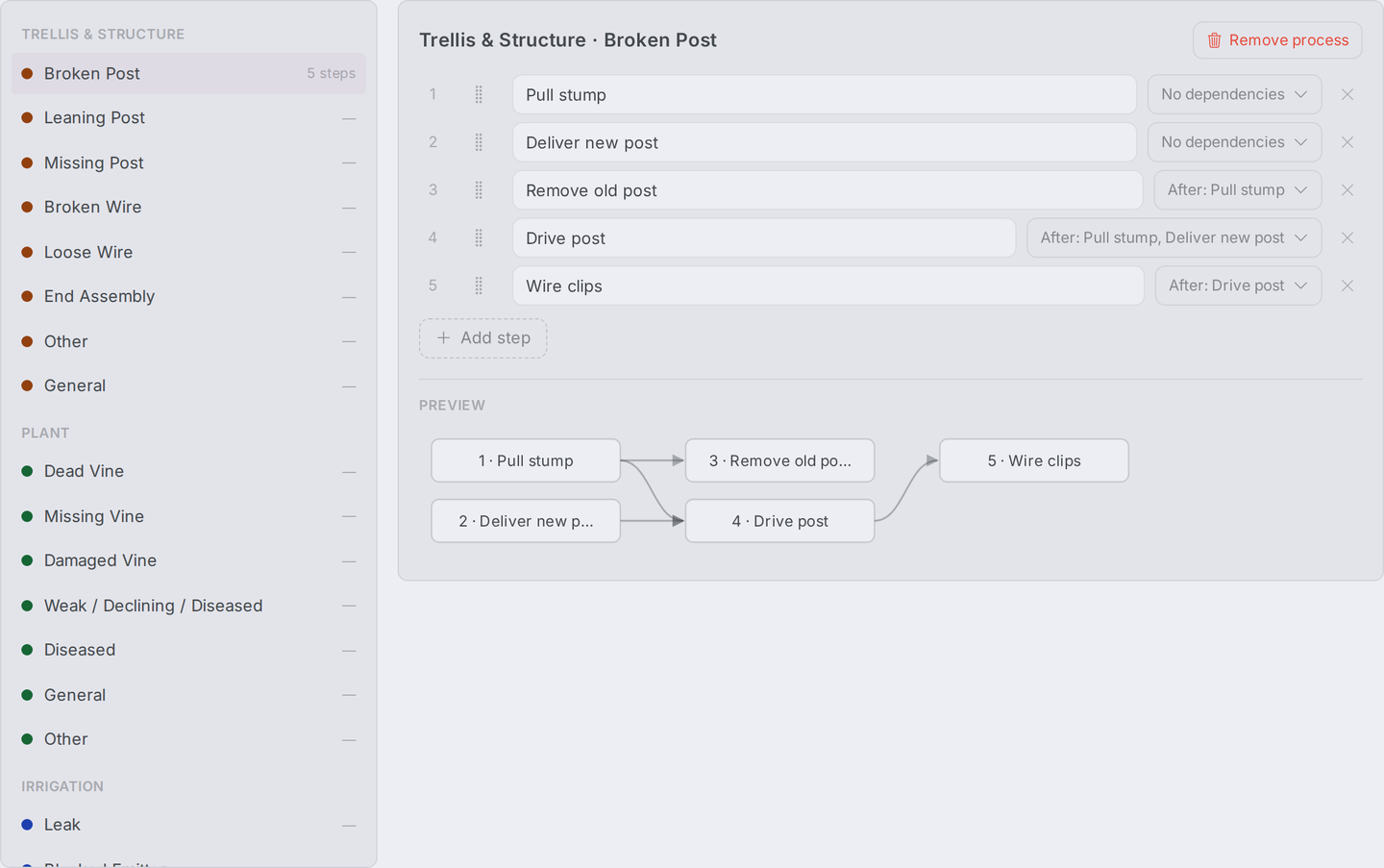
In the designer you can:
- Add step — a process can have at most 12 steps.
- Rename a step inline — its name is a plain text field in the step row.
- Reorder by dragging the grip handle on each step.
- Set prerequisites — each step has a Depends on menu to mark other steps as prerequisites. A step with unmet prerequisites is blocked in the field until they're done.
Live validation flags problems (for example, circular dependencies) before you can save, and a Preview diagram at the bottom shows the step flow laid out by dependency.
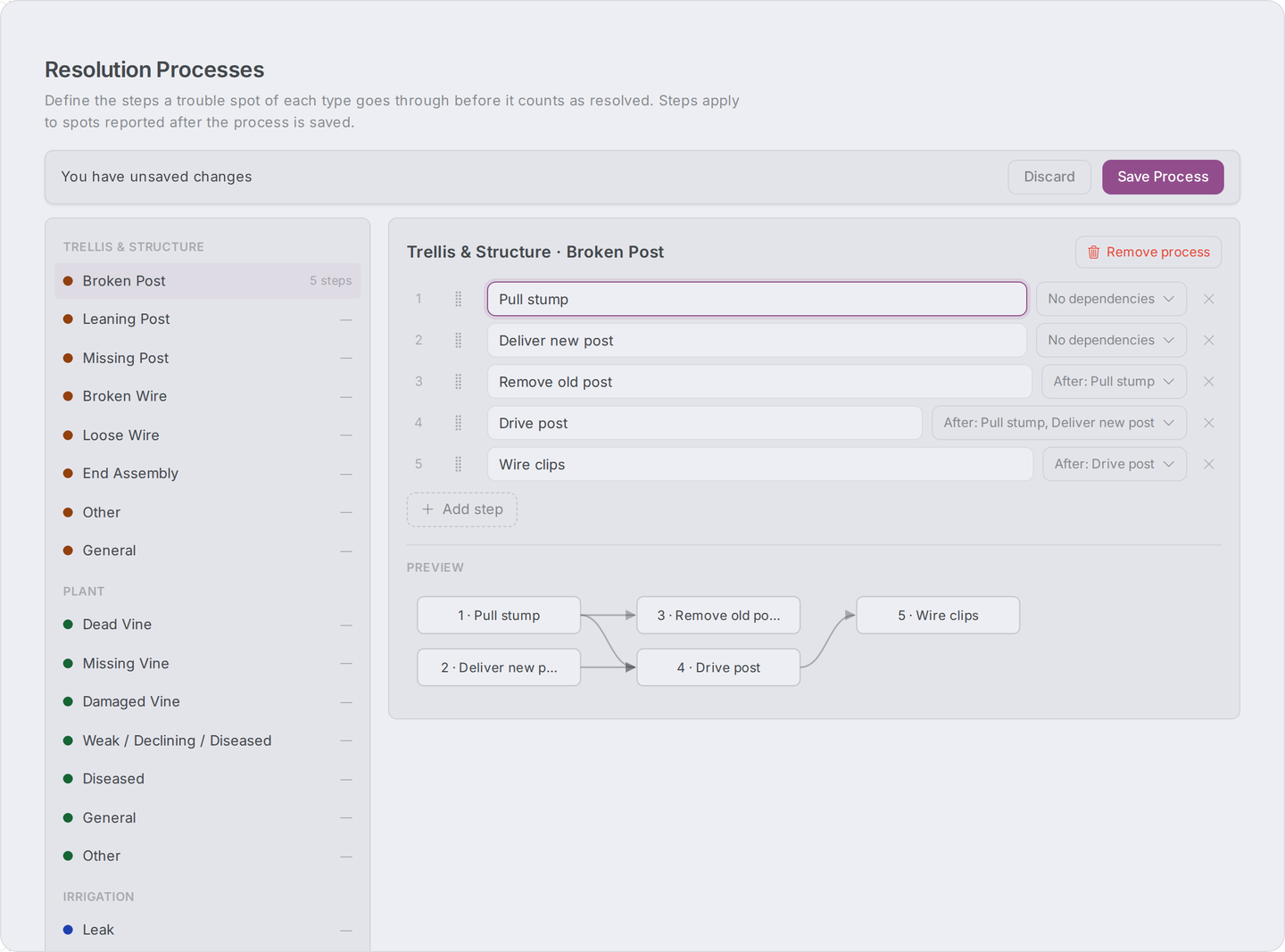
Saving
As soon as you make a change, an unsaved-changes bar appears with Discard and Save Process. Saving applies the steps to open spots of that type as well as new ones — the confirmation reads "Applied to N open spots of this type; new spots will carry these steps too." Completed spots are never touched.
- Saving an empty step list removes the process — same as Remove.
- Remove process deletes the process after a confirmation. Open spots keep the steps they already carry; new spots of the type go back to single-tap completion.
What it changes in the field
Once a type carries a resolution process:
- Spots of that type show a step checklist instead of the single Hold to complete — on the mobile detail card, and in the portal on the Spot Fix work-order detail page and the Maps page's spot card. See Completing trouble spots.
- On a Spot Fix work order you can assign different people to each step when creating it — see Creating a work order.
- The mobile map's Layers sheet gains a Needing step filter, showing only spots still waiting on a chosen step — see Viewing trouble spots.
Related
Managing trouble-spot types (enterprise)
Configure the trouble-spot categories and types your team reports in the field — shapes, colours, short codes, and quick-access — from the portal. An enterprise capability for Admin and Manager users.
Work orders
How work orders assign and coordinate field work — General Work, Spot Fix, and Spot Search.