Work order types
The three kinds of work order — General, Spot Fix, Spot Search — and how to choose between them.
Platform: Portal and mobile
Every work order is one of three types. The type decides what goes into the work order when it's created, what the field team sees when they work it, and what its progress counts.
The three types at a glance
| Type | What it's for | Icon | Progress counts |
|---|---|---|---|
| General Work | A standalone task for the team, optionally with a field-feature checklist to tick off | Checklist | N / M features |
| Spot Fix | A group of trouble spots to resolve, assigned as one job | Flag | N / M spots |
| Spot Search | A row-by-row sweep of chosen blocks hunting one specific trouble-spot type | Magnifier | N / M rows |
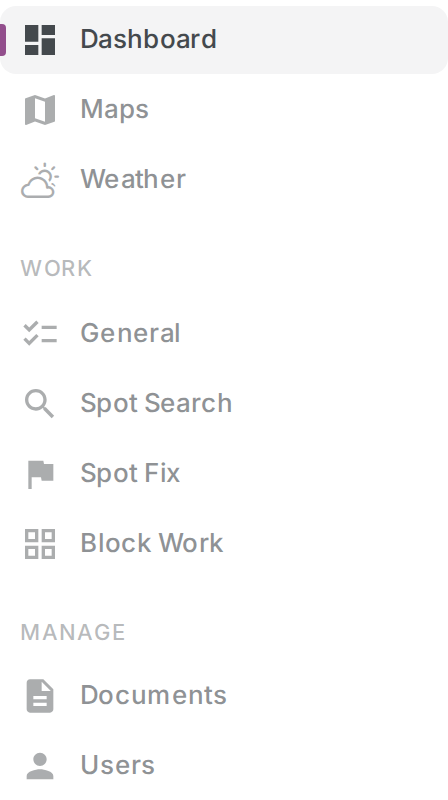
The same icons are used everywhere — the portal's nav and pages, and the mobile app's work cards and filter chips — so a glance tells you what kind of work you're looking at. The portal describes each type in one line:
- General — "Standalone tasks for your team — optionally with a field-feature checklist to tick off."
- Spot Fix — "Group trouble spots into work and assign them to your team."
- Spot Search — "Sweep blocks row by row for a specific trouble spot."
Where types live in the portal
The portal's left nav has a WORK section with one page per type, in this order: General, Spot Search, Spot Fix. The nav is the type selector — each page lists only work orders of its type, and its + button creates that type. There is no type picker anywhere; the page you're on decides.
All three pages share the same layout: a status filter (All / Active / Overdue / Complete / Archived, default Active, remembered separately per type) above a table of Name / Assigned to / Deadline / Progress / Created, with a ⋮ menu on each row. See Assigning and tracking a work order.
Type filter chips on the mobile Work tab
On the app's Work tab, type filter chips appear only when your assigned work spans more than one type — if everything on your plate is the same type, there are no chips to fiddle with. The chip row scrolls horizontally and always runs in the same order: All, then General, Spot Fix, Spot Search, each type chip carrying its icon.
Selecting a chip filters the list to that type; All clears the filter. Each work card also shows its type icon and type-aware progress copy — N / M features, N / M spots, or N / M rows — and a Spot Fix whose spots share a resolution process shows one small bar per step instead.
Choosing the right type
- You already know which spots need fixing → Spot Fix. Pick the spots, and the team resolves them one by one; the map focuses on exactly those spots while they work.
- You suspect a problem but don't know where → Spot Search. Pick the trouble-spot type you're hunting and the blocks to sweep; the team walks the blocks lane by lane, reporting finds as new trouble spots. The results can later be turned into a Spot Fix — see Turning a Spot Search into a Spot Fix.
- Anything else — a job that isn't about trouble spots → General Work, with or without a feature checklist.
The one-liner: a Spot Fix starts from known spots; a Spot Search starts from suspicion.
Next steps
- Creating a work order — portal
- Assigning and tracking a work order — portal
- Working a work order — mobile