Block sheet and planting settings
View and edit a block's per-row block sheet (linear metres, plants, posts) and its planting settings (plant spacing and plants per bay) on the portal and mobile app.
Platform: Mobile and portal
Every block has two related sets of numbers that drive its plant and post estimates:
- Planting settings — the plant spacing and plants per bay for the block. By default these are inherited from the vineyard, and can be overridden per block.
- The block sheet — a per-row grid showing each row's length, plants, and posts (estimated or actual), together with the active trouble spots that deduct from them.
Planting settings feed the block sheet: change the spacing and every row's estimate updates. Both are also used by the row calculator.
This page covers viewing and editing both, on the portal and on mobile.
Planting settings
A block's plant spacing and plants per bay each come from one of three places, shown by a small source chip next to the value:
- Block — a value set directly on this block (an override). (On the portal this chip reads Set on block.)
- Inherited — no block value is set, so the block uses the vineyard default. (On the portal this chip reads From vineyard, and shows the inherited value — for example, From vineyard (0.95 m).)
- Not set — neither the block nor the vineyard has a value.
The vineyard defaults are first set when you create the vineyard — see Creating a vineyard. Anything you set on the block overrides that default; clear it and the block falls back to inheriting again.
If plant spacing is Not set (on the block and the vineyard), estimated positions and plant counts stay blank — the app can't estimate plants without a spacing. You can still record actual plant and post counts in the block sheet.
Editing planting settings (portal)
-
Open Maps and select the block on the map.
-
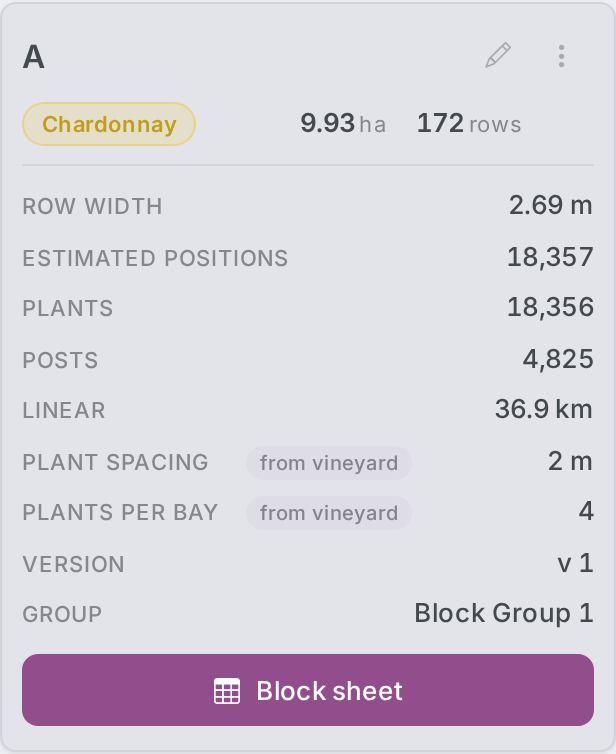
In the block panel on the right, find the Planting section. It shows Plant spacing and Plants per bay, each with its source chip.
-
Select the pencil (edit) button next to the Planting heading.
-
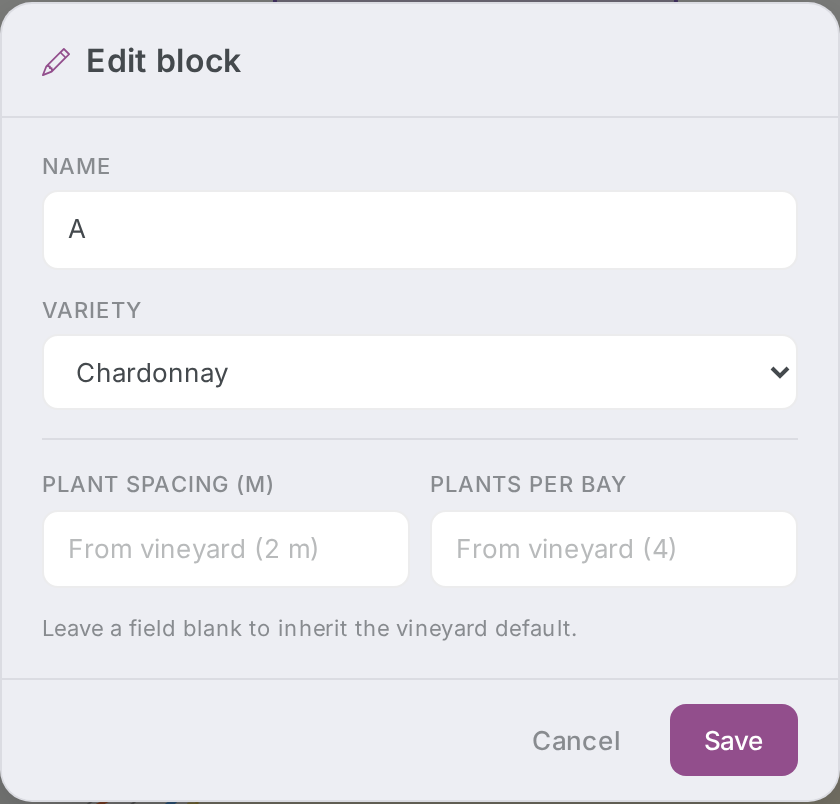
Enter a Spacing (m) and/or Plants per bay. To make the block inherit the vineyard default instead, leave that field blank — the placeholder shows what you'll inherit.
-
Select Save. The chips update to Set on block (where you entered a value) or From vineyard (where you left a field blank to inherit), and the block's plant and post totals refresh.
Spacing must be a positive number of metres ("Spacing must be a positive number"); plants per bay must be at least 1 ("Plants per bay must be at least 1").
Editing planting settings (mobile)
-
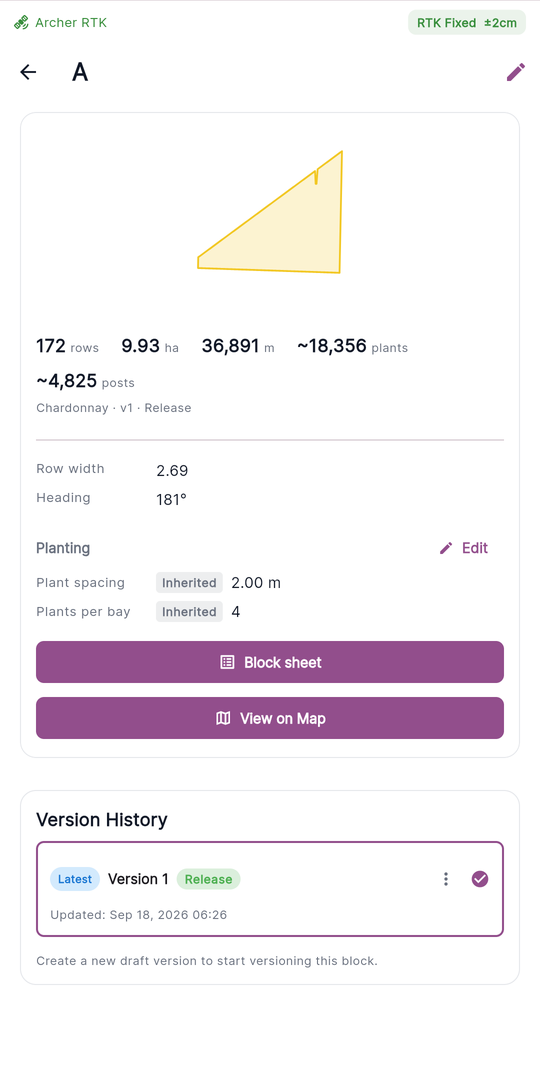
Open a vineyard, then open the block to reach the block detail screen.
-
In the Planting section you'll see Plant spacing and Plants per bay, each with a Block, Inherited, or Not set chip.
-
Tap Edit next to the Planting heading to open the planting settings dialog.
-
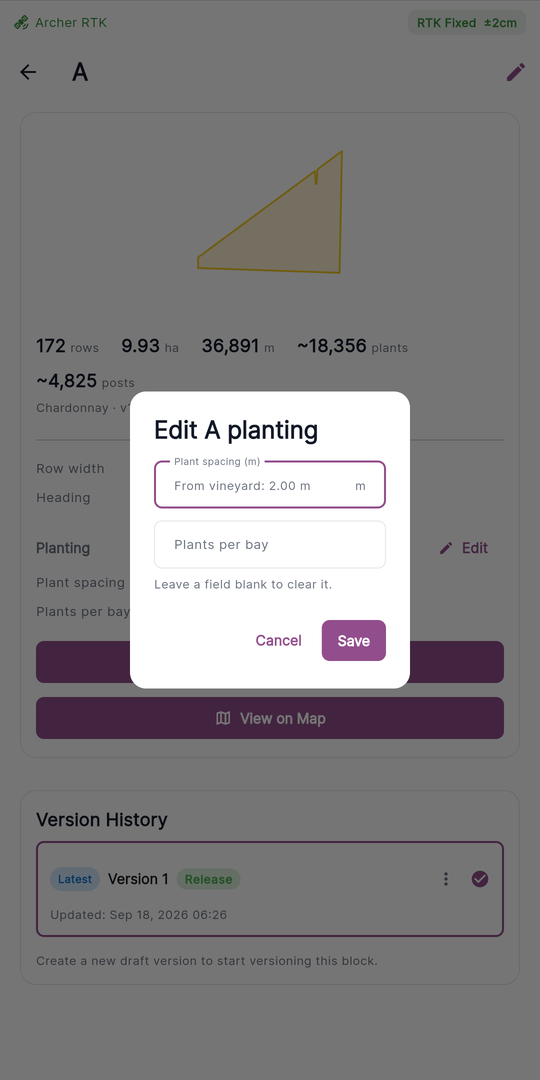
Enter Plant spacing (m) and/or Plants per bay. The dialog is titled Edit <block> planting; each empty field hints at the inherited value (for example, From vineyard: 0.95 m), and its footnote reads "Leave a field blank to clear it." — a blank field means the block has no override and inherits the vineyard's value.
-
Tap Save. The block's totals refresh with the new estimates.
The block sheet
The block sheet is a per-row view of a single block — every row in the field, with its length and its plant and post counts. It works the same on the portal and the mobile app: the sheet opens read-only, and a pencil switches it into an explicit edit mode for recording actual counts. You never type subtractions — deductions are driven by trouble spots (see below).
The read view
A compact grid with a pinned column header and a pinned Total row:
| Column | What it shows |
|---|---|
| # | The row number. |
| Length (m) | The row's length, from the block's mapped geometry. Read-only. |
| Plants | The row's plant count. A small est chip marks the value as an estimate when no actual has been recorded. |
| Posts | The row's post count, with the same est chip rule. |
| Spots | The row's active trouble spots. |
Active trouble spots that deduct from a value show their taxonomy marker icons beside it — up to 2, with any more folded into a +N chip (the Spots column shows up to 3).
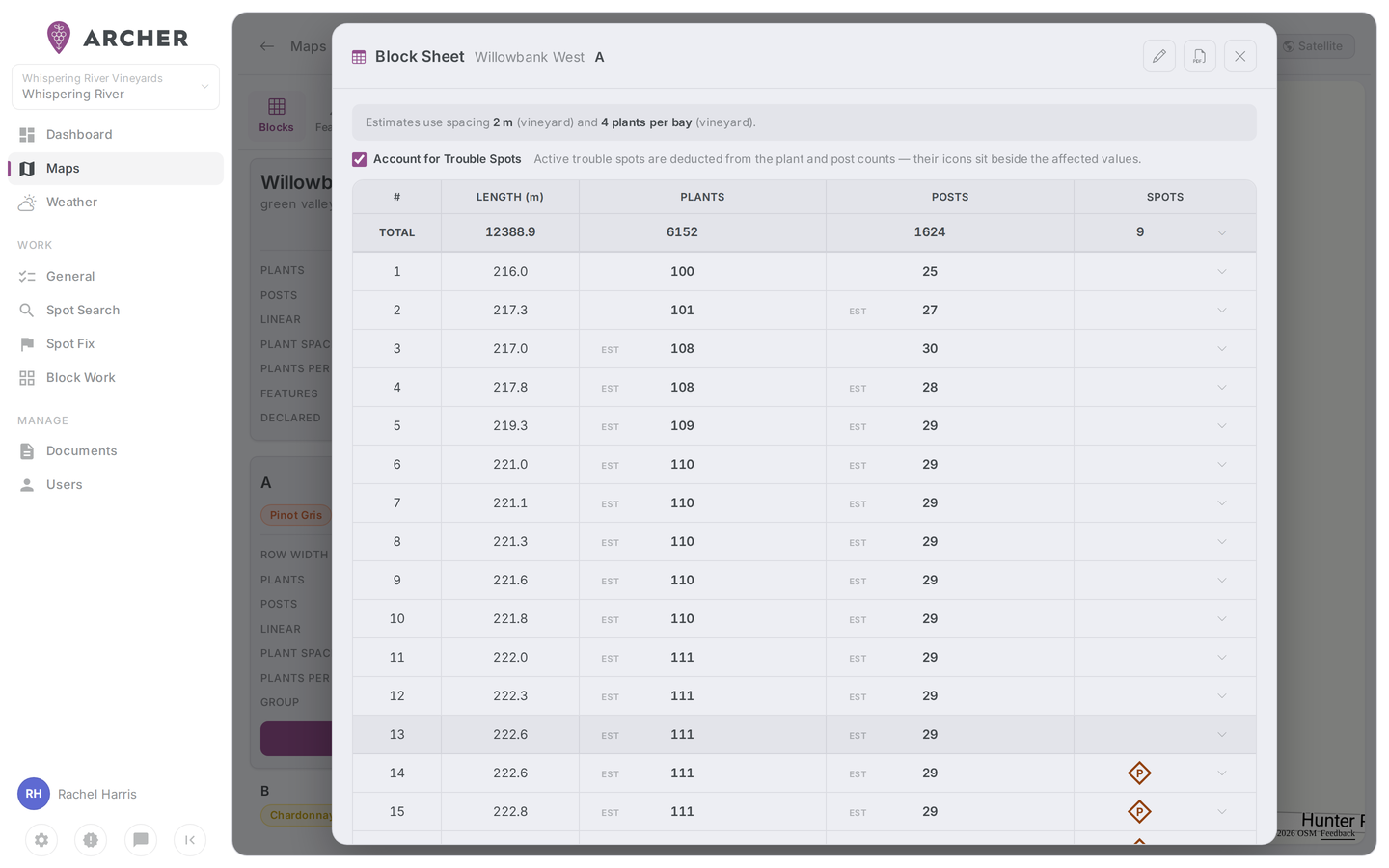
Account for Trouble Spots
Above the grid sits an Account for Trouble Spots checkbox, ticked by default:
- Ticked — the grid shows net counts: active trouble spots are deducted from the plant and post counts, and their icons sit beside the affected values.
- Unticked — the grid shows gross as-planted / as-installed counts, and every spot icon moves to the Spots column.
How trouble spots deduct
- Only active (not yet completed) trouble spots recorded against a row count.
- Whether a spot deducts is decided by its type: types that count toward subtractions in the Plant category subtract one plant each, and in the Trellis category subtract one post each. Other spot types are listed in the Spots column but deduct nothing.
- Completing a spot restores the count.
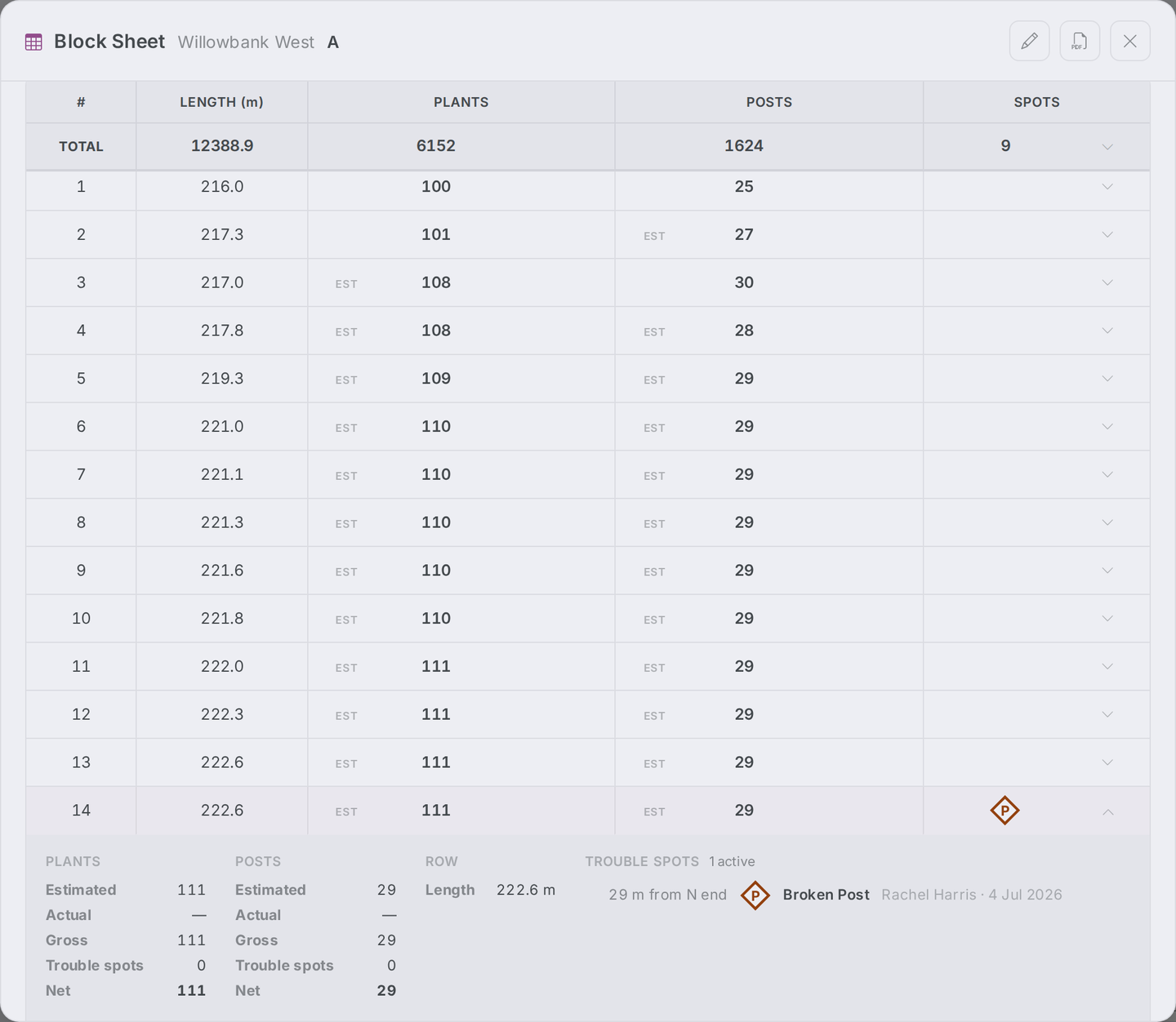
Expanding a row
Tap (or click) a row — or the Total row — to expand it into a full breakdown. One row is open at a time. The breakdown shows:
- Plants: Estimated / Actual / Gross / Trouble spots (−N) / Net.
- Posts: the same five figures.
- The row's Length.
- The row's active trouble spots, ordered by distance along the row — each with its icon, type name, a −1 plant or −1 post tag when it deducts, and who reported it and when.
The spacing banner
A banner above the grid states which plant spacing and plants-per-bay the estimates use and where each came from — for example, "Estimates use spacing 0.95 m (from vineyard) and 3 plants per bay (set on block)."
- If plant spacing isn't set on the block or the vineyard, a warning explains that estimated positions and plant counts stay blank until spacing is set — actual counts can still be edited.
- If plants per bay isn't set, post estimates are unavailable.
Edit mode
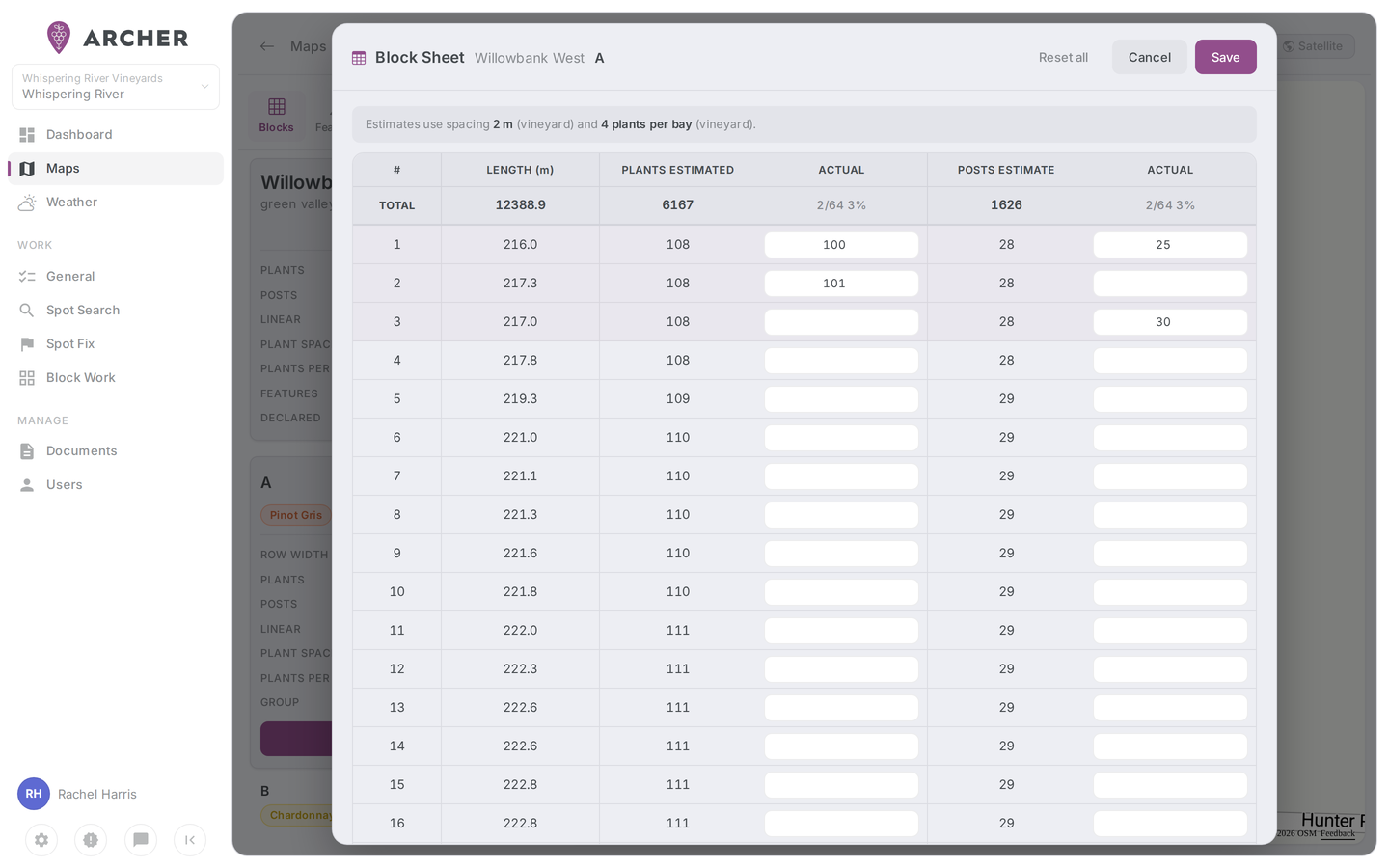
Enter edit mode with the pencil (in the portal its tooltip reads "Edit actual values"). The sheet becomes a flat grid — #, Length (m), Plants estimated, Actual, Posts estimate, Actual — with an input beside each estimate. You can now record an actual post count per row as well as actual plants (the posts override is new).
- Trouble spots are ignored entirely while editing — no checkbox, icons, or expansion.
- The Total row shows how many rows have actuals filled in per column (for example, 12/28 43%).
- There is no per-row reset button — clear a row by emptying its inputs. Reset all clears every override, after a confirmation ("Reset all rows?" — nothing is saved until you Save).
- Save asks for confirmation and states that it saves overrides on N of M rows and updates the block's plant and post totals across the app. Saving with no overrides set warns that it clears any previously saved overrides.
- Cancelling with unsaved changes asks before discarding them.
- Actuals must be whole numbers of 0 or more.
Opening the block sheet (portal)
-
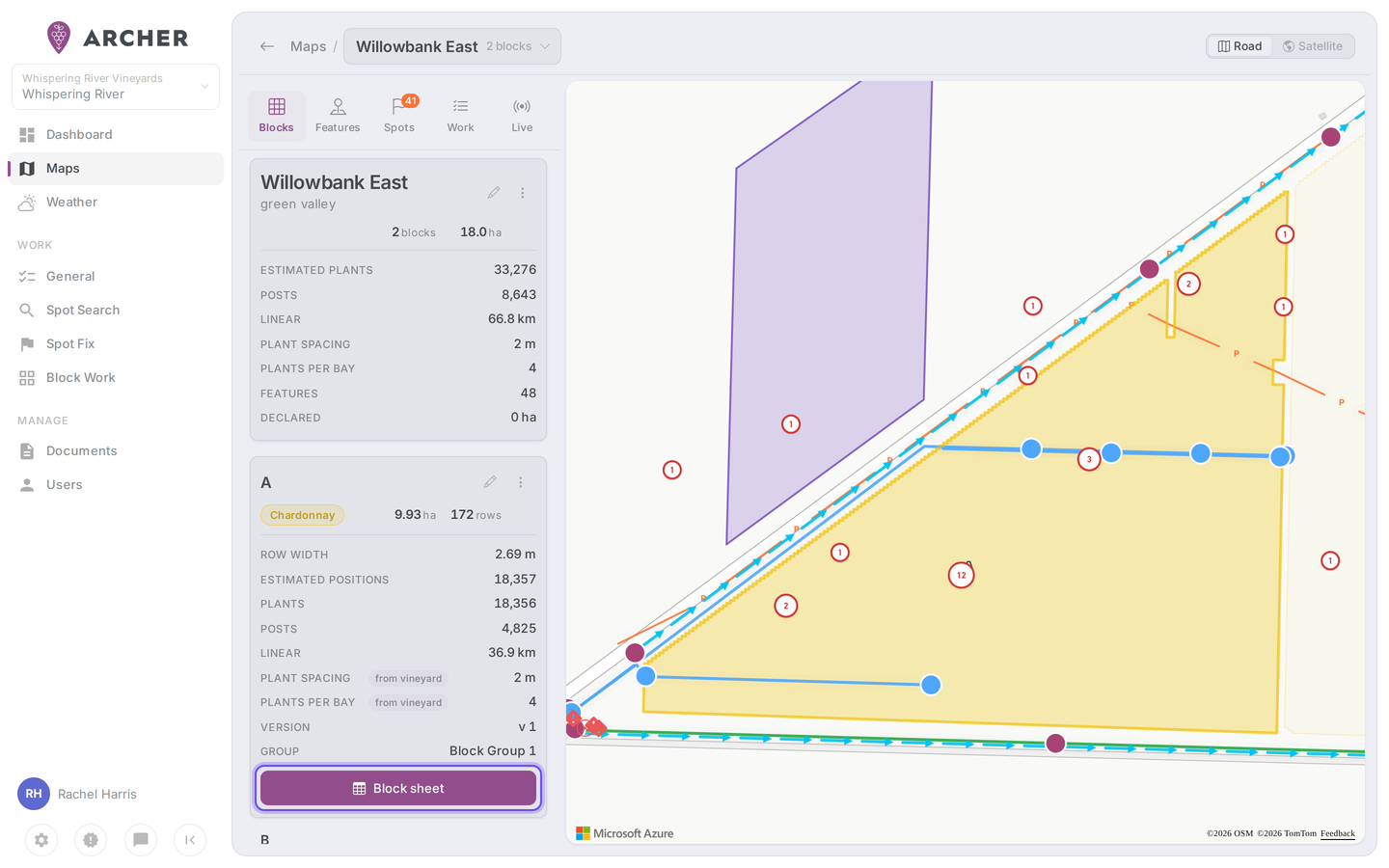
Open Maps and select the block.
-
In the block card, select the Block sheet button (under the Planting section).
-
The Block sheet dialog opens in the read view. Alongside the pencil, the header has an Export to PDF button and a close (X).
Opening the block sheet (mobile)
-
Open a vineyard, then open the block to reach the block detail screen.
-
Tap the Block sheet button. The sheet opens as a full-screen page.
-
On narrow phones the grid shows one metric column at a time — switch between them with the Plants / Posts / Length chips under the checkbox. Wide screens show the full grid.
-
In edit mode, Reset all, Cancel, and Save live in a bottom bar.
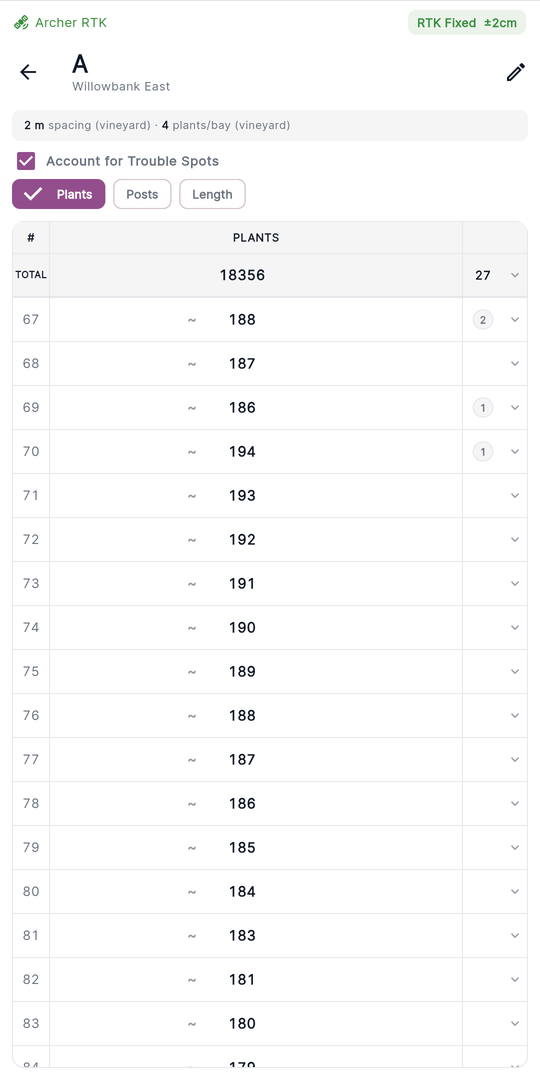
You can also reach the sheet from the main map: tapping a row opens its card, and the card's Block sheet action opens the sheet scrolled to that row with a brief highlight.
Related
- Mapping a block — draw the block boundary and rows that the block sheet is built from.
- Editing block details — change a block's name, variety, planting settings, and per-row values.
- Creating a vineyard — set the vineyard planting defaults that blocks inherit.
- Row calculator — uses plant spacing and plants per bay to estimate plants and posts.