Row Calculator
Pick rows in a block on your phone and instantly read back length, area, plants and posts — a read-only field tool that never changes your data.
Platform: Mobile (the Archer app)
The Row Calculator is a quick what-if tool. Choose a block, select the rows you care about, and Archer adds up their length, area, plants and posts for you — handy for planning a spray run, a pruning job, or a quick "how much of this block is that?" check in the field.
It's read-only. Nothing you do here changes a block, a sheet, or any other record — it only reads existing block data to do the sums.
Open the Row Calculator
- Open the menu (☰).
- Tap Row Calculator (the calculator icon).
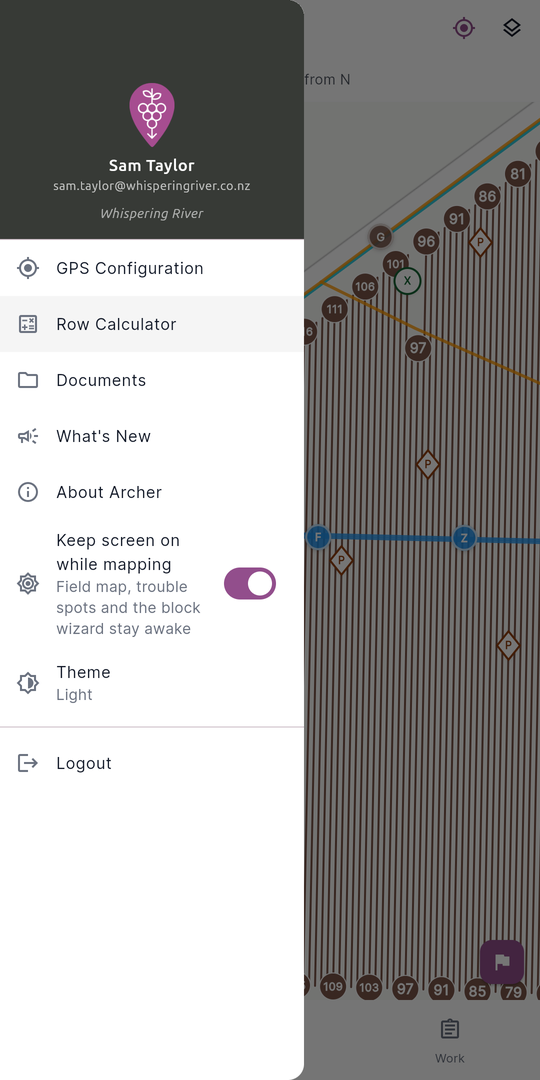
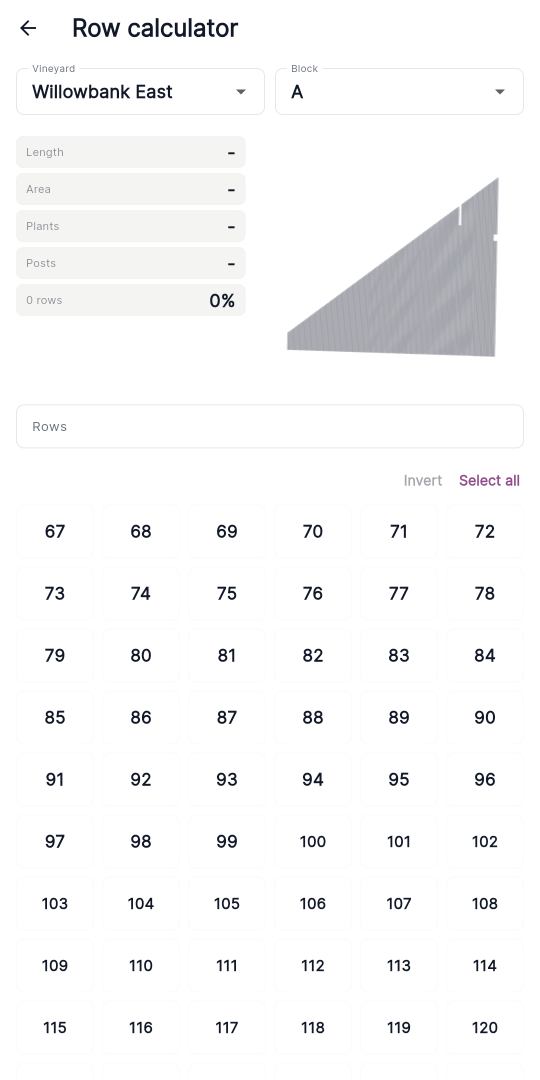
The screen opens on the title Row calculator, with the Vineyard and Block selectors at the top.
Select a vineyard and block
- Pick a Vineyard from the first dropdown.
- Pick a Block from the second dropdown.
Only blocks that have row geometry appear in the Block list, and only vineyards that contain at least one such block appear in the Vineyard list. If a block isn't mapped with rows yet, it won't be selectable here.
When you switch vineyard or block, your current row selection clears so you start fresh.
Select the rows
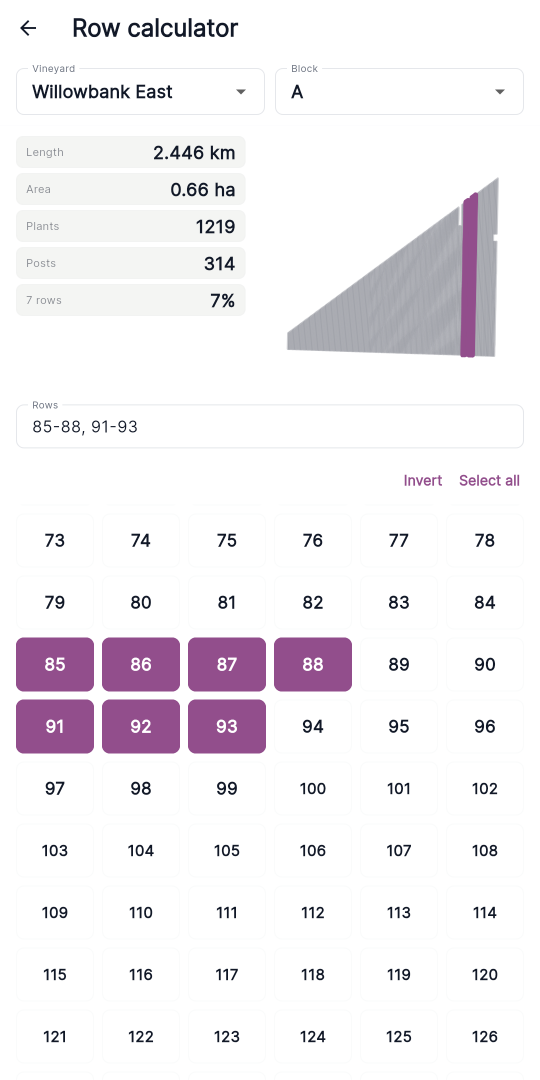
There are two ways to choose rows, and they stay in sync — type some numbers and the matching tiles highlight; tap some tiles and the text field updates to match.
Tap the row tiles
Each row in the block shows as a numbered tile in the grid. Tap a tile to select it; tap again to deselect. Selected tiles are filled in your highlight colour.
Type row numbers or ranges
Use the Rows field to type numbers and ranges instead — for example:
69, 71-77, 85You can separate entries with commas, spaces or semicolons, and use a hyphen for a range (71-77 selects 71 through 77). The grid highlights as you type, and selecting tiles writes a tidy, collapsed list back into the field (e.g. 69, 71-77, 85).
Select all and Invert
Above the row grid, on the right, are two quick-selection buttons — Invert on the left, Select all on the right:
- Invert replaces your selection with its complement — pick the rows you've done, then invert to see what's not done. It's disabled while nothing is selected.
- Select all selects every row in the block. Once every row is selected, the same button reads Clear, so tapping it again deselects everything.
Read the summary
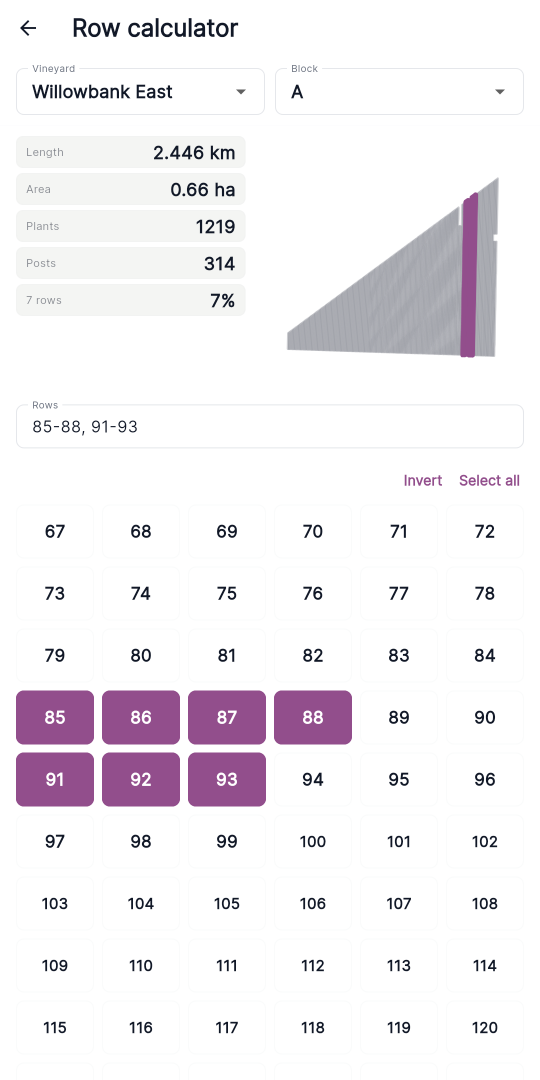
As you select rows, the summary above the grid updates live. On the left is a column of grey stat boxes — Length, Area, Plants, and Posts — each with the label on the left and a large bold value on the right. The block graphic sits to the right of the stats, taking up roughly half the width.
| Stat | What it shows |
|---|---|
| Length | Total active row length, in whole metres (420 m). Past 1,000 m it switches to km with three decimals (1.234 km), so metre precision is kept. |
| Area | Selected area in hectares (X.XX ha). |
| Plants | Total plant count across the selected rows. |
| Posts | Total post count across the selected rows. |
Beneath the stats, a fifth box in the same style summarises your selection: the row count as its label (for example, 12 rows) and the percentage of the block you've selected as its value, rounded to a whole number (a tiny sliver shows as <1%).
Any value Archer can't work out (for example, a block with no row width set) shows as - rather than a guess.
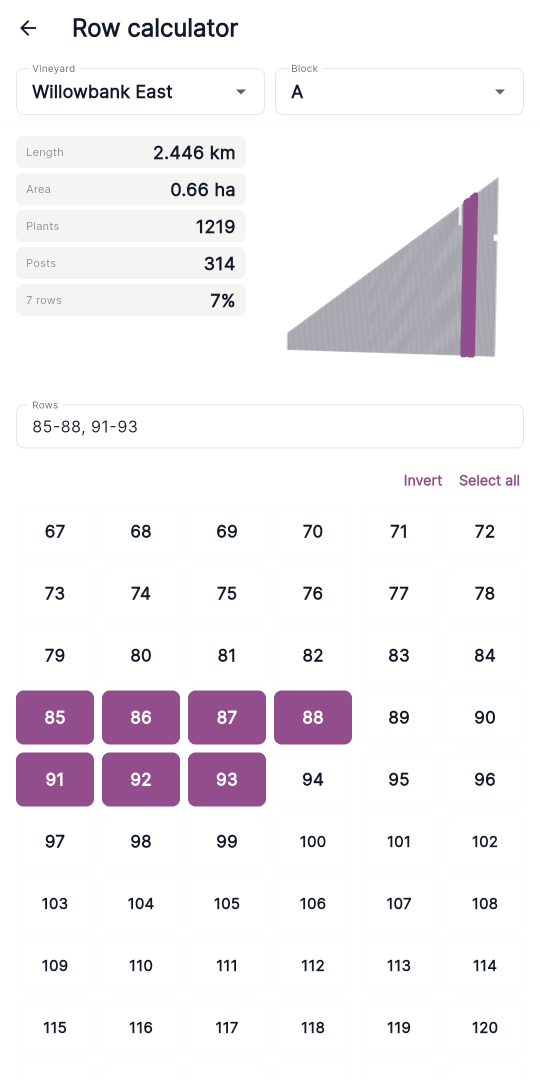
The block graphic
The right-hand half of the summary is a large graphic of the block showing every row, with your selected rows highlighted in purple — unselected rows draw in a neutral theme colour, so the graphic reads clearly in dark mode too. It's a quick visual check that you've picked the part of the block you meant to.
Estimates vs. actuals
For the most exact figures — including any manual overrides made on the block sheet — Archer loads the block's actuals in the background:
- While they're loading, you'll see Loading actuals… under the summary. The numbers on screen are a local estimate in the meantime, so the tool is usable straight away.
- If the actuals can't be loaded (you're offline, or the block has no sheet yet), you'll see Estimated — couldn't load actuals. The figures shown are then Archer's own estimate rather than the block sheet's exact values.
- When no status line is shown, the figures reflect the block's actuals.
💡 The estimate is close, but the actuals reflect any manual plant/post overrides recorded on the block sheet. Once actuals are in, the plant and post figures exactly match the block sheet — if precision matters, wait for Loading actuals… to clear.
When there's no row data
- If none of your blocks have row geometry, the screen shows No row data available — "Blocks need row geometry before rows can be selected." Map a block with rows to use the calculator.
- If you somehow land on a block without rows, the grid area shows No row geometry for this block.