Signing in (mobile)
How to sign in to the Archer app, choose a management group, and log out.
Platform: Mobile (the Archer app)
This page covers signing in to the Archer mobile app, picking which management group to work in, and logging out again. (In the mobile app, an organisation is called a management group — see Key concepts.)
Sign in with a one-time code
The one-time code option works on every device (Android and iOS). You don't need a password — Archer emails you a short code each time you sign in.
- Open the Archer app. You'll land on the sign-in screen.
- In the Email field, type the email address your account is registered under.
- Tap Send one-time code. Archer emails a 6-digit code to that address.
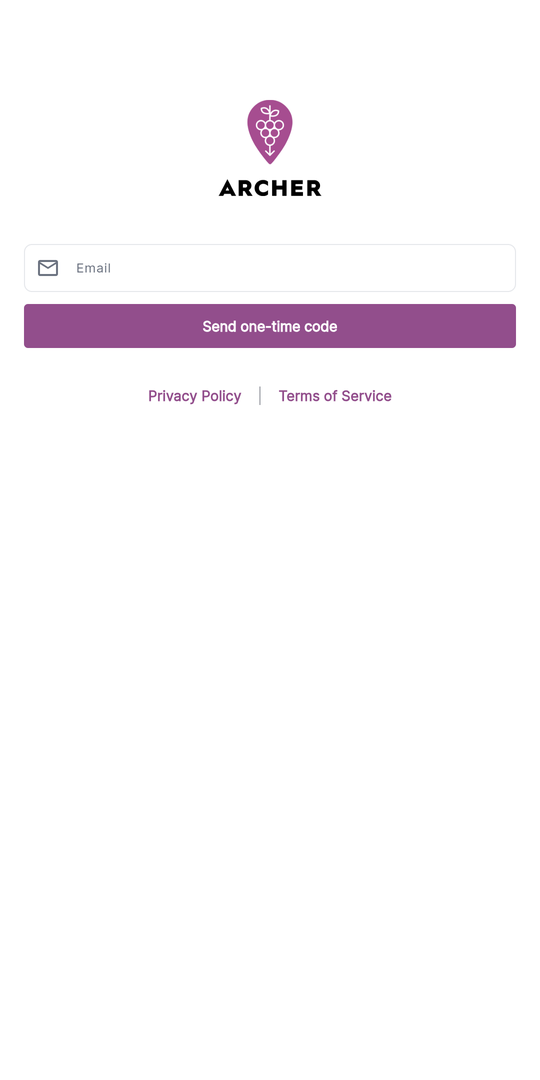
- Check your email for the code, then enter it in the Enter 6-digit code field that appears.
- Tap Verify and continue.
If the code doesn't arrive after a minute or so, check your spam folder, confirm you typed the right email address, and tap Send one-time code again to request a fresh one.
Sign in with Google or Microsoft (Android only)
On Android devices, you can sign in with your Google or Microsoft account instead of using an email code. These buttons appear above the email field, separated by an or divider.
- On the sign-in screen, tap Sign in with Google or Sign in with Microsoft.
- Complete the standard account prompt for that provider.
The provider buttons aren't shown on iOS — on an iPhone or iPad, use the one-time code option above.
Choose a management group
After you sign in, Archer shows the Select management group screen so you can pick which one to work in.
- Management groups are grouped by company. Each company heading shows how many groups it contains.
- Tap the management group you want to open.
In two cases Archer skips this screen and takes you straight in:
- You only have one management group. It's selected automatically.
- You've used the app before. Archer reselects the last management group you worked in.
To change which management group you're in later, use Switch Management Group from the menu (see Key concepts).
Log out
- Open the navigation drawer (the menu at the top-left of the home screen).
- Tap Logout near the bottom of the drawer.
- In the confirmation dialog ("Are you sure you want to logout?"), tap LOGOUT to confirm, or CANCEL to stay signed in.
After logging out, you're returned to the sign-in screen, where you can sign in again with a one-time code or (on Android) a Google or Microsoft account.
Your unsent work stays on the phone. From app version 0.2.21, logging out keeps trouble spots, completions, check-offs and mapping drafts that haven't reached Archer yet. They send once you're signed back in to the same management group, with signal and the app open. It's still best to let everything send first: if the Work tab shows changes waiting to sync, get back in signal with the app open until the strip clears. In older versions, logging out deletes unsent work, so update the app or wait for the strip to clear.