Setting up an RTK base station
Install the Archer RTK Base Station, set it up from your phone, and let your machines use it automatically.
Platform: Archer RTK Base Station + your phone's browser (no app needed for setup)
Preview. This guide is being finalised alongside the base-station hardware. Some details — the power supply in the box, Wi-Fi support, and adding a station from the Archer app — are still being confirmed and are marked as such below.
An Archer RTK Base Station gives your Archer machines and rovers centimetre accuracy over your own land. One unit covers a wide area — tens of kilometres — so a single base station is usually enough for a whole property. You plug it in, set it up from your phone in a few minutes, and from then on your machines use it automatically.
Quick start — from the label on the box
The label carries two things you need: the serial (for example ARB-F43754) and the setup code.
- Connect the antenna and power it up. Screw the antenna cable onto the round socket, plug in the network cable if you're using Ethernet, then power the unit through its USB-C port with a 5 V, 3 A supply. After a short self-check (about 40 seconds) the light settles on blue.
- On your phone, join the unit's Wi-Fi. The network is named Archer- plus the last four characters of the serial — ARB-F43754 becomes Archer-3754. The password is the setup code on the label.
- The setup page opens by itself. If it doesn't, open your browser and go to 192.168.4.1. Sign in with the setup code.
- Follow the four steps — name the station, tell it how it gets online, tell it where it is, and finish.
- Wait for the light to go solid green. The station spends about 10 minutes working out its own position the first time, then serves your machines.
That's the whole flow. Your machines pick the station up on their own — there's nothing to configure per machine. The rest of this page has the detail for each step.
What you'll need
-
The base station unit, its GNSS antenna (weatherproof, on a 15 m cable), and a mount for the antenna.
-
A USB-C power supply rated 5 V, 3 A or more (15 W). A supply is included with pilot units.
-
A dry indoor spot for the unit itself — a shed or pump house within the antenna cable's reach (15 m). The unit is not weatherproof; only the antenna is. If that spot is an outbuilding far from the house, Wi-Fi won't reach it: run an Ethernet cable there, or use the cellular model.
-
One of the following for its internet connection:
- an Ethernet cable to your network router, or
- your property's Wi-Fi network and its password — the unit needs to sit within normal Wi-Fi range of the router, roughly where a laptop would work, or
- a mobile SIM — on the cellular model only, which adds a SIM slot and two small screw-on aerials.
The standard model does Ethernet or Wi-Fi; the cellular model does Ethernet, Wi-Fi, or mobile data. On a Starlink property, either plug into the Starlink router by cable or join the Starlink Wi-Fi — both are fine.
-
A spot for the antenna with a clear view of the sky.
Installing the unit
- Mount the antenna up high — a pole, a roof edge, or the top of a shed — with an open view of the sky in every direction. Keep it away from walls, trees, and metal roofs that block or reflect the signal. The antenna is weatherproof; the unit is not, so plan for the unit to sit indoors within the 15 m cable run.
- Make it permanent. The antenna must not move once the station is set up. If you ever do move the base station, run setup again so it measures its new position — it will not notice the move on its own (see If you move the base station).
- Run the antenna cable indoors to the base station unit and screw it onto the round antenna socket on the rear panel. The antenna is powered through this cable — there's nothing else to connect to it.
- Connect to the internet — plug the Ethernet cable into the network port, or plan to join your Wi-Fi during setup. On the cellular model, you can instead insert the SIM and screw on its two aerials.
- Apply power through the USB-C port using a 5 V, 3 A supply. The first time it's powered, the unit runs a self-check for about 40 seconds and restarts itself once in the first few seconds; the light then settles on blue, meaning the station is waiting to be set up.
Setting it up from your phone
Everything is done from your phone's web browser — you don't need the Archer app for this part.
-
Find the setup code on the label on the unit, next to the serial. It's 8 characters, unique to that unit.
-
On your phone, open Wi-Fi settings and join the network called Archer- followed by the last four characters of the serial on the label (ARB-F43754 → Archer-3754). The password is the setup code.
-
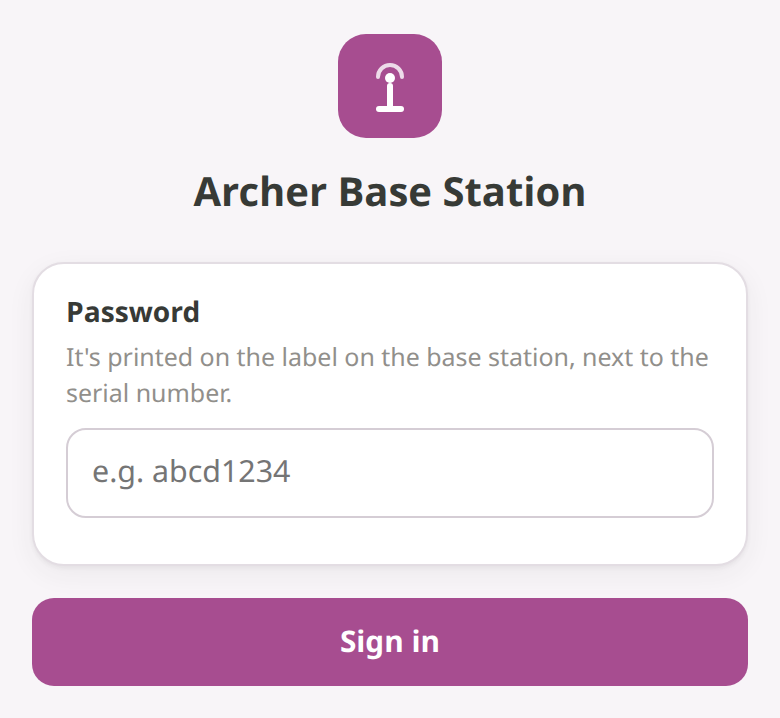
The setup page opens automatically. If it doesn't, open your browser and go to 192.168.4.1. It asks for the Password — that's the setup code again. Tap Sign in.
-
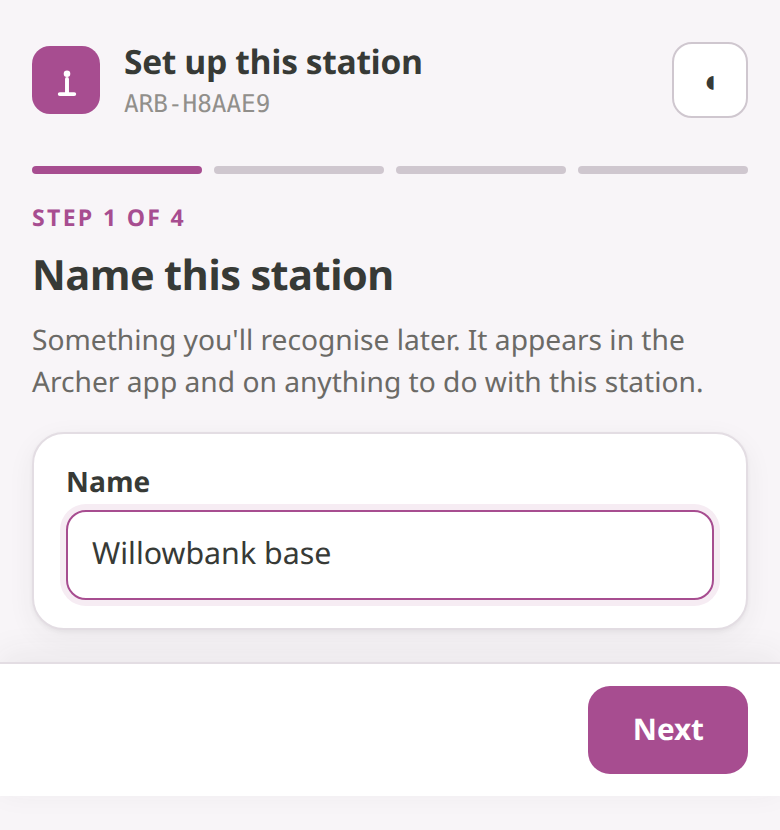
Step 1 of 4 — Name this station. Something you'll recognise later, such as the property name. This is the name that appears in the Archer app. Tap Next.
-
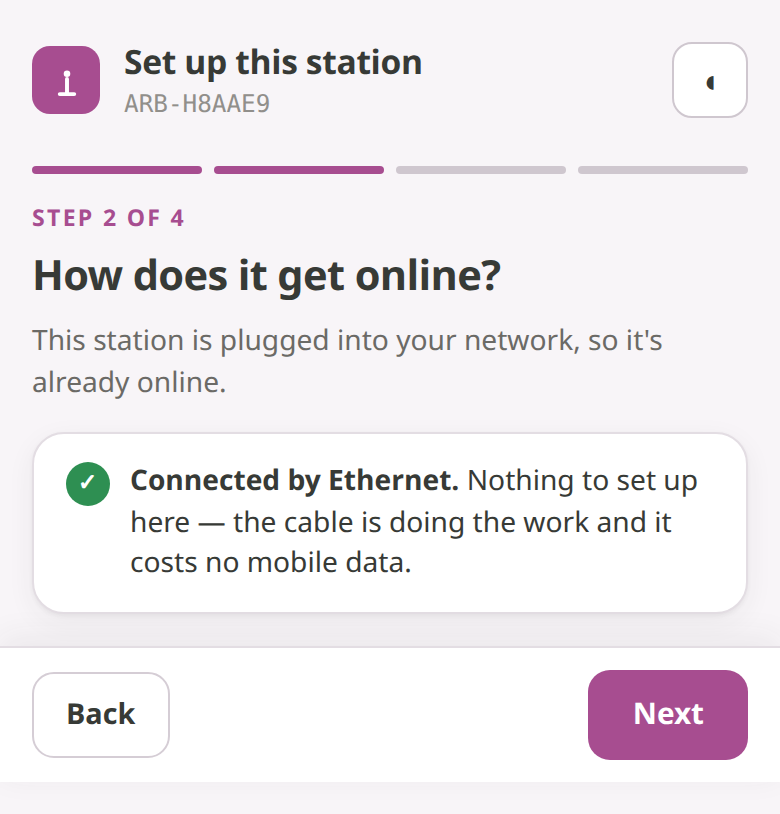
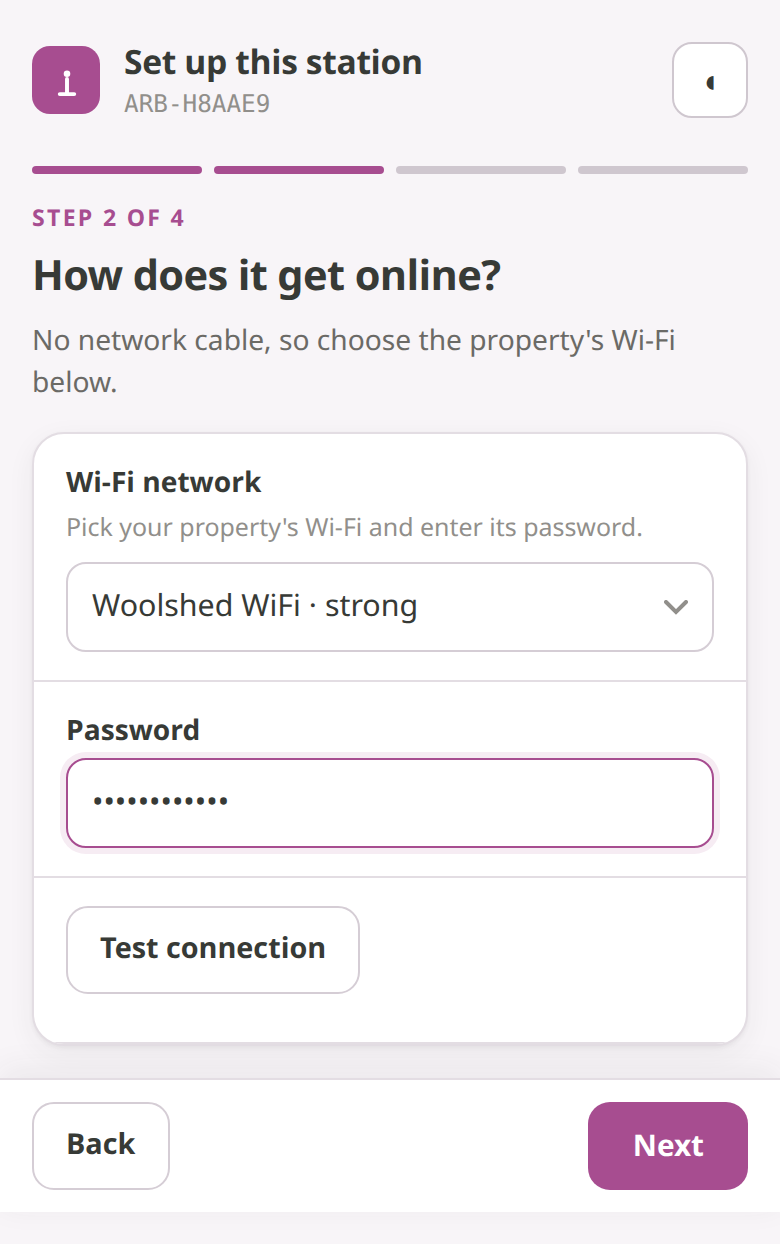
Step 2 of 4 — How does it get online?
- With the Ethernet cable plugged in, the page shows Connected by Ethernet — nothing to set up, and it costs no mobile data.
- Otherwise it asks for the property's Wi-Fi: pick yours from the Wi-Fi network dropdown (nearby networks are listed with their signal strength), enter its password, and tap Test connection. When it works you'll see Connected to <your network>. The setup page stays open the whole time — the unit keeps its own Archer-XXXX network up until setup finishes — so if you see That password didn't work, just try again.
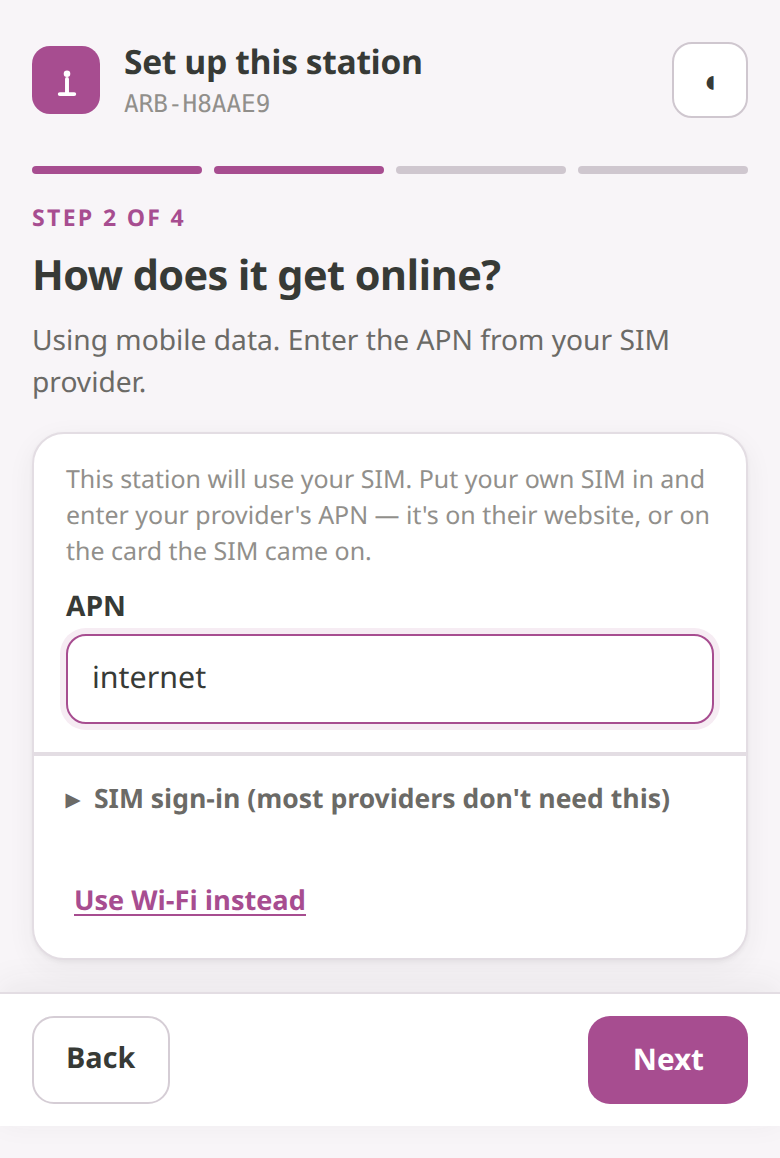
- On the cellular model, tap No Wi-Fi here — use mobile data instead to switch to the SIM. Enter your provider's APN (it's on their website, or on the card the SIM came on). The SIM sign-in section underneath stays collapsed — most providers don't need it. Use Wi-Fi instead takes you back.
-
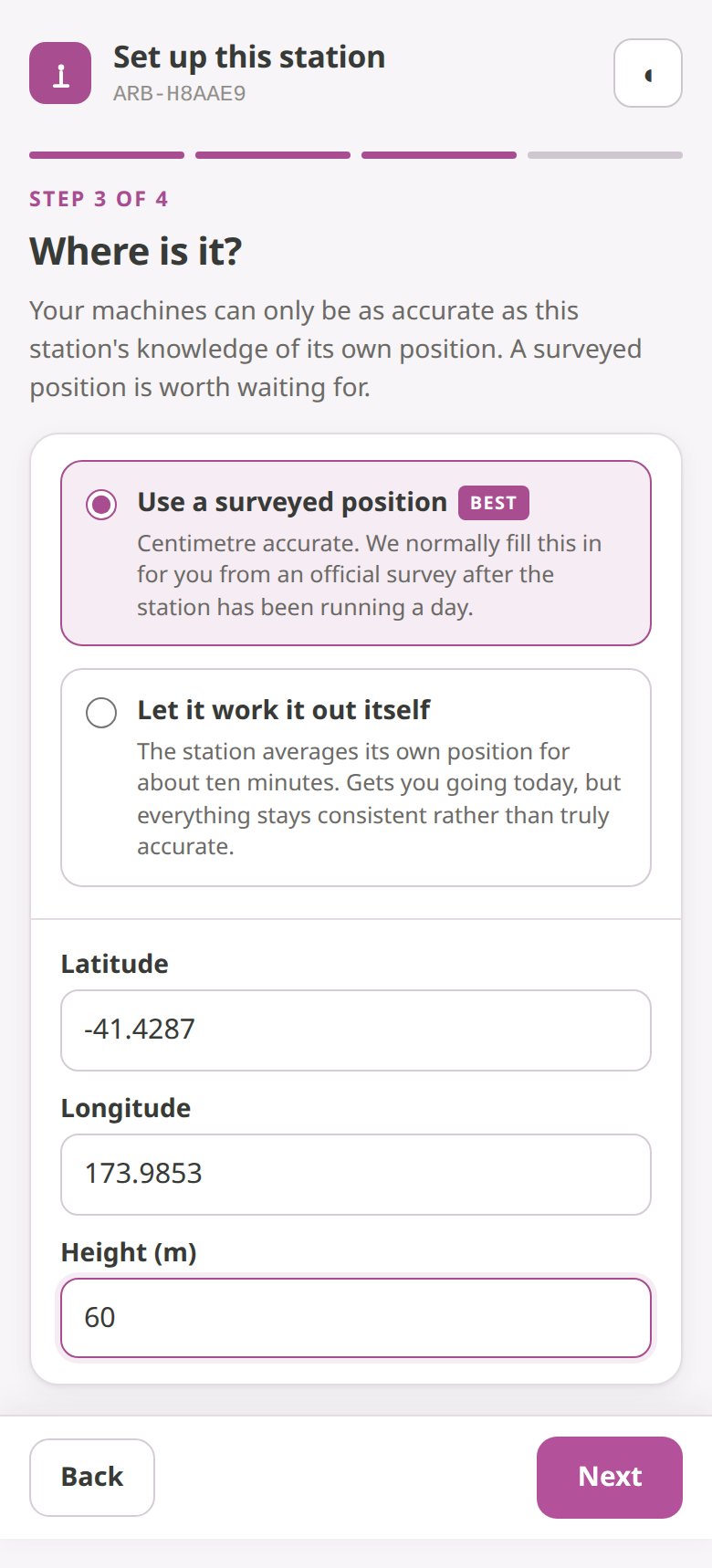
Step 3 of 4 — Where is it? The station needs to know its own position, because your machines can only be as accurate as that position. On a new install choose Let it work it out itself — the other option is only for the rare case where you already have professionally surveyed coordinates. See Telling the station where it is for what the choice means.
-
Step 4 of 4 — Corrections. This step just confirms that the correction settings arrive from Archer Cloud automatically once the station is added to your account — there is nothing to enter. Tap Finish setup.
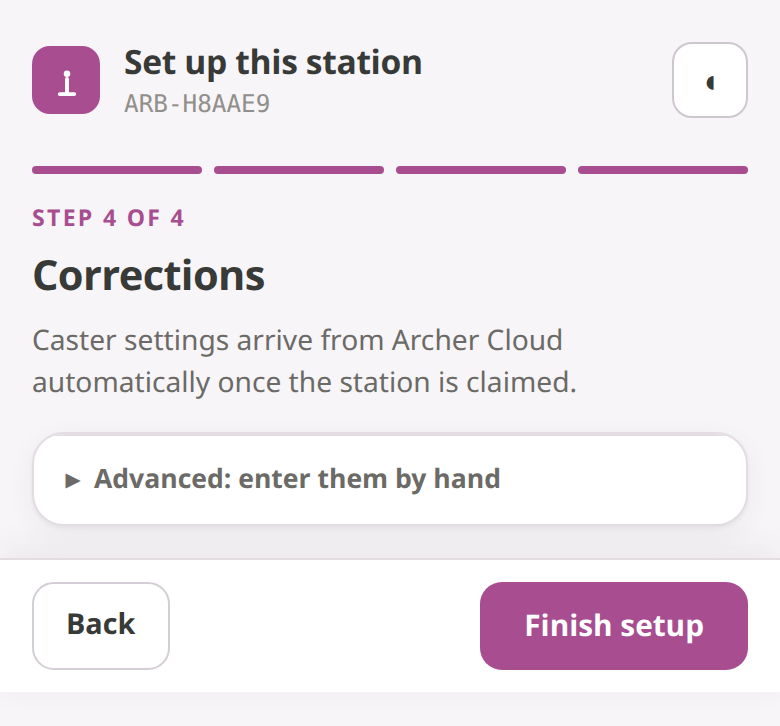
There's no server or correction service for you to configure — those settings come from Archer Cloud — and once the position is settled, the station serves your machines on its own.
The QR code on the label opens this guide — it doesn't join the unit's Wi-Fi for you. Join the Wi-Fi and enter the setup code by hand as above. 🔜 A QR that joins the unit's Wi-Fi and opens the setup page in one scan is coming.
Telling the station where it is
Step 3 of setup (and the same section on the Settings page) offers two ways to fix the station's position:
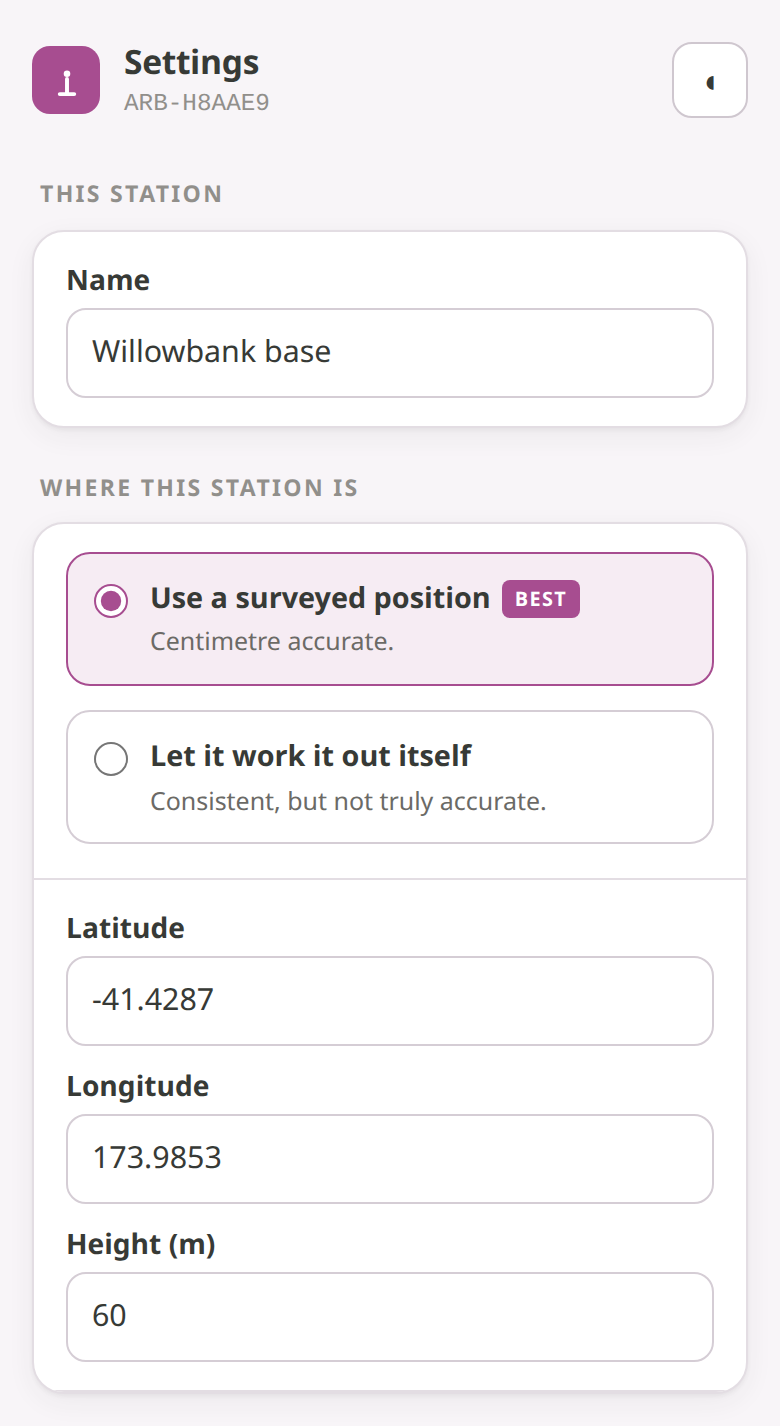
- Let it work it out itself — the normal choice. The station averages its own position for about ten minutes, then starts serving your machines. Your machines get centimetre accuracy relative to the base straight away — mapping, spraying and returning to the same post all line up. The only uncertainty (around a metre) is in the base's absolute position on the globe, which matters for lining up with outside maps or other base stations, not for a rover working off this base.
- Use a surveyed position (marked Best) — for the rare case where you already have professionally surveyed latitude, longitude and height for the antenna. Enter them and the station's absolute position is centimetre-accurate too.
While it's working its position out, the light pulses green and the status page shows the progress. As soon as it finishes, the light goes solid green and machines start using it.
🔜 Coming soon: automatic refinement. Archer Cloud will refine a self-measured station's absolute position once it has been running for about a day and push the exact coordinates to the station — nothing for you to type. Until that lands, a self-measured station simply stays on its own measurement, which is fine for everyday work.
The setup code
The 8-character code on the label is used in three places, and it's the same code each time:
- As the Wi-Fi password when you join the unit's Archer-XXXX network.
- As the password for the setup page (the sign-in page simply calls it Password).
- In the Archer app, to add the station to your account so your management group's machines and rovers can use it.
Keep the label readable — you'll want the code again whenever you open the station's page. Treat the code like a password: anyone who has it can change the station's settings. If support asks you to identify a station, give them the serial, not the code.
🔜 Coming soon: adding the station in the app. The screen for entering the setup code in the Archer app is still on its way. Interim: contact support with your setup code and we'll attach the station to your account.
What the light means
The unit has one light. The station's status page shows the same colour and uses exactly the same words, so what you read on screen matches what you see on the unit.
| Light | Meaning | What to do |
|---|---|---|
| Solid green | Working (the page says Working normally). Position settled and sending corrections. | Nothing. |
| Pulsing green | Getting ready. Starting up, or working out its position. | Wait — about 10 minutes if it's measuring its own position. |
| Blue | Needs setup. | Follow Setting it up from your phone. |
| Amber | On mobile data — working, but over the SIM. Ethernet and Wi-Fi both show solid green. | Fine if you chose a SIM. If you expected Ethernet or Wi-Fi, that connection has dropped and corrections are interrupted until it's back — check the cable or router. |
| Red | Fault. | Power-cycle the unit. If it stays red, contact support. |
| Fast white | Identify. Someone pressed Flash the light on the status page (or support did) so you can find this unit. | Nothing — it stops on its own. |
The status page
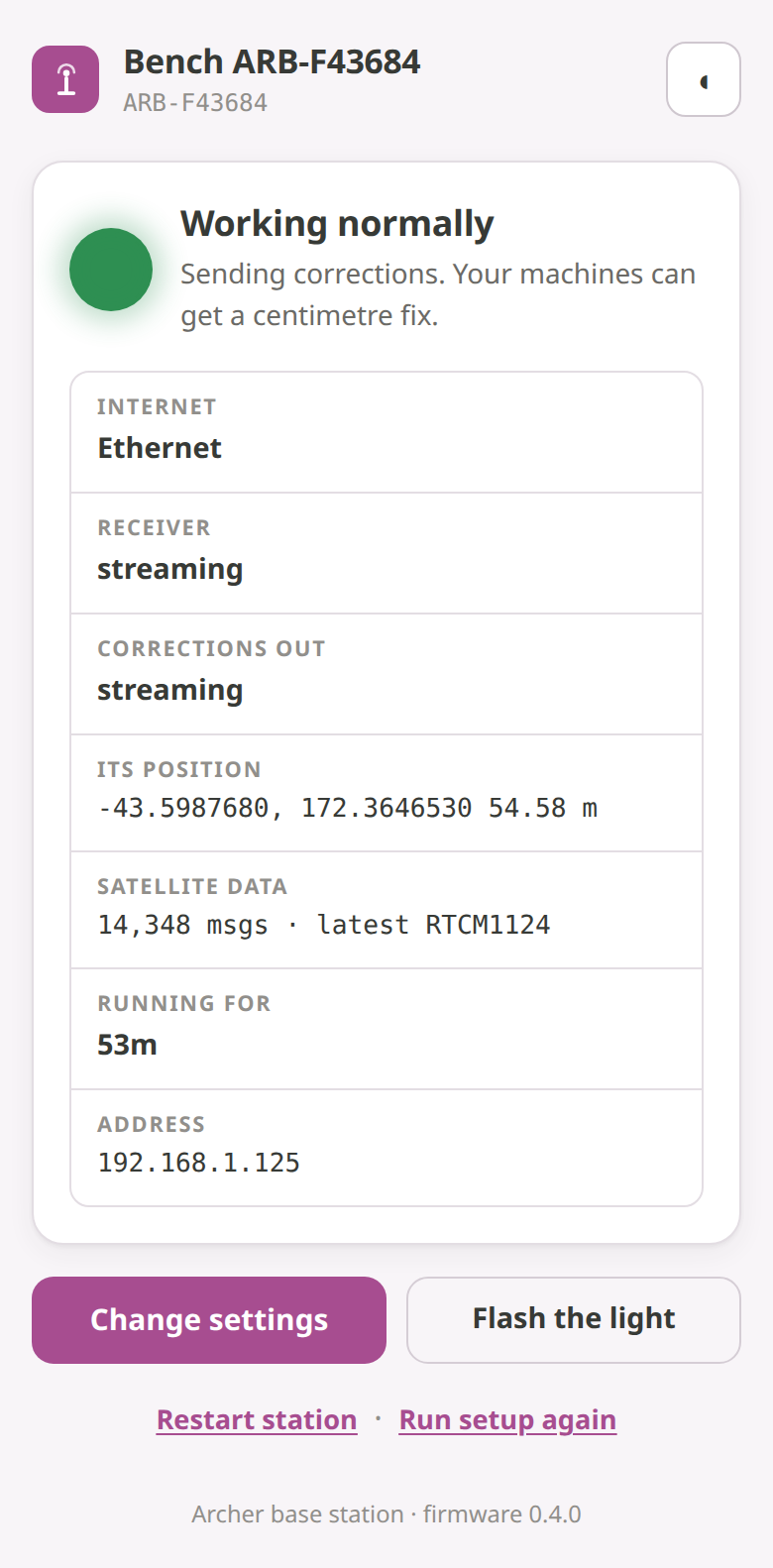
Once setup is done, signing in to the station shows its status page: the light's colour and meaning at the top (a healthy station reads Working normally — Sending corrections. Your machines can get a centimetre fix.), then rows for Internet, Receiver, Corrections out, Its position, Satellite data, Running for and the station's Address on your network. Below that:
- Change settings — rename the station, change its position (the same choices as step 3), or move it to a different Wi-Fi network.
- Flash the light — makes the unit's light blink fast white so you can pick it out.
- Restart station and Run setup again — the latter walks the four setup steps again, which is what you do after moving the station.
Opening the page on a working station
A working station (solid green) doesn't broadcast its Wi-Fi. To reach its page:
- On Ethernet or Wi-Fi: from a phone or laptop on the same network, open http://archer-XXXX.local (XXXX being the last four characters of the serial, so archer-3754.local for ARB-F43754) and sign in with the setup code. Android phones can't open
.localaddresses — use a laptop, or the fallback below. - Fallback (and the only way on a mobile-data-only station): unplug the network cable (or take the unit out of Wi-Fi / signal range), then power-cycle the unit — unplug its power, wait a few seconds, plug it back in. It starts up with no connection and brings its Archer-XXXX network back so you can join it as you did during setup.
Using it
Once the station is live, there is nothing more to do. Archer machines and rovers on your account pick it up automatically — the GPS rover shows it in the RTK Corrections card on Auto, and the Status tab reads via <your station name> when it's being used.
If you move the base station
The station does not notice that it has been moved. It keeps broadcasting its old position, which is worse than being off — your machines would get a confidently wrong fix. So whenever the base station or its antenna is moved, even a little:
- Open the station's page (see above) and tap Run setup again.
- At Where is it?, choose Let it work it out itself (or enter the new surveyed coordinates if you have them).
- Tap Finish setup and wait for solid green.
Its name and connection settings are kept — you only redo the position.
Troubleshooting
- The light is blue. The station hasn't been set up yet — go through Setting it up from your phone.
- The light is amber and I'm on a SIM. That's normal — it's working over mobile data.
- The light is amber and I expected Ethernet or Wi-Fi. That connection has dropped and machines are not getting corrections until it's back. Check the cable, or that your Wi-Fi router is up and in range; the light returns to green once it reconnects.
- The Wi-Fi keeps dropping. The unit is too far from the router. Move it closer, run an Ethernet cable to it, or use the cellular model.
- The light is red. Unplug the power, wait a few seconds, and plug it back in. If it comes back red, contact support and quote the serial on the label (ARB-…).
- I can't find the Archer-XXXX Wi-Fi. The unit only offers its Wi-Fi when it starts up needing setup or without an internet connection — a station that's already running won't show it. See Opening the page on a working station.
- It never finishes working out its position. The antenna can't see enough sky. Move it higher or away from whatever is blocking the view — then, because it has moved, Run setup again.
- I moved the base station. See If you move the base station.
Specifications and support
| Power | USB-C, 5 V, 3 A or more (15 W). Typical draw about 2.5 W with the antenna connected; brief peaks up to about 10 W on the cellular model |
| Connectivity | Standard model: Ethernet or Wi-Fi. Cellular model: Ethernet, Wi-Fi, or mobile data via SIM |
| Antenna | ByNav BY420H, weatherproof (IP67), 15 m cable, powered from the unit |
| Unit | Indoor use only (not weatherproof) |
| Coverage | Tens of kilometres |
| Position | Self-measured in about 10 minutes (centimetre-accurate relative to the base), or professionally surveyed coordinates |
| Setup | From a phone browser via the unit's Wi-Fi; no app required |
For help, see Support and have your station's serial (ARB-…, on the label) ready. Keep the setup code to yourself — it's the station's password.