Getting around the app (mobile)
The bottom tabs and side menu in the Archer app, and where to find common settings.
Platform: Mobile (the Archer app)
Once you're logged in and have picked a management group, the app is organised around three bottom tabs and a side menu (drawer). This page covers where everything lives so the rest of the docs can point you at the right place.
Bottom tabs
The bar across the bottom of the screen has three tabs:
- List — the list of vineyards (and their blocks) for the current management group. Tap a vineyard to drill into it.
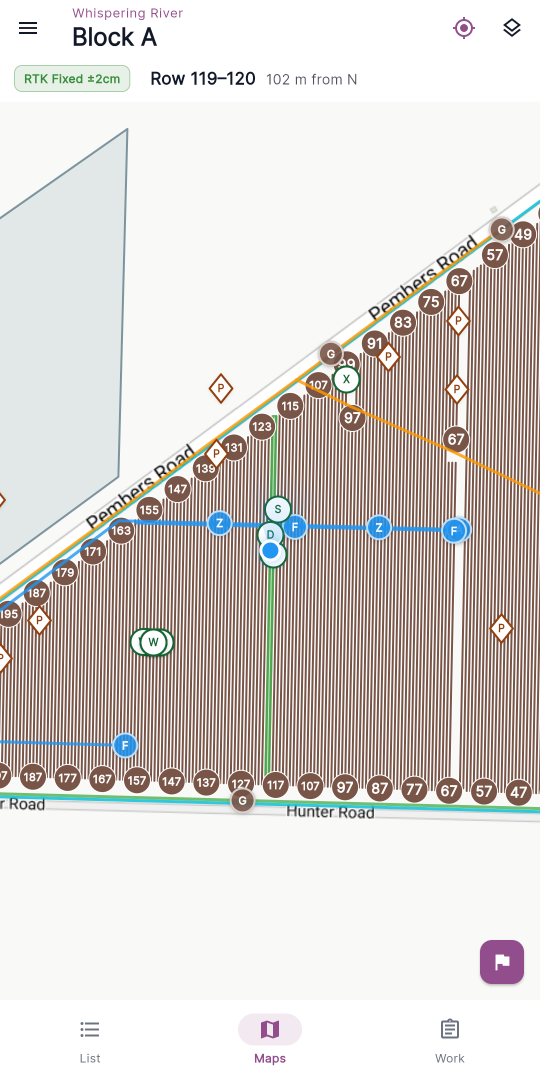
- Maps — the map view. This is the home tab, so it's where the app opens by default.
- Work — open work assigned to you for the current management group (work whose start date has arrived). Completed work lives in the portal. See Work orders.
Tap a tab to switch to it. On a tablet or a wide landscape screen the bar moves to a rail down the left edge, with the same three destinations. The Maps tab is the home of the app: pressing the system back button from another tab returns you here, and pressing back again from Maps leaves the app.
Note: The vineyard list used to be called Vineyards. It's now the List tab — the same place, just renamed. Likewise, the Work Orders tab is now simply Work.
The app bar
At the top of each tab, the app bar shows the name of the management group you're currently working in, with the name of the current tab below it (List, Maps, or Work). The management group name is a quick way to confirm which organisation's data you're looking at before you start work.
Two things are special about the app bar on the Maps tab:
- Once GPS resolves you inside a block, the title shows that block's name (for example, Block A) instead of "Maps".
- The app bar also carries two map buttons — follow-GPS and Layers — covered in Using the field map.
The side menu (drawer)
Open the side menu by tapping the menu icon at the top left of any tab, or by swiping in from the left edge of the screen.
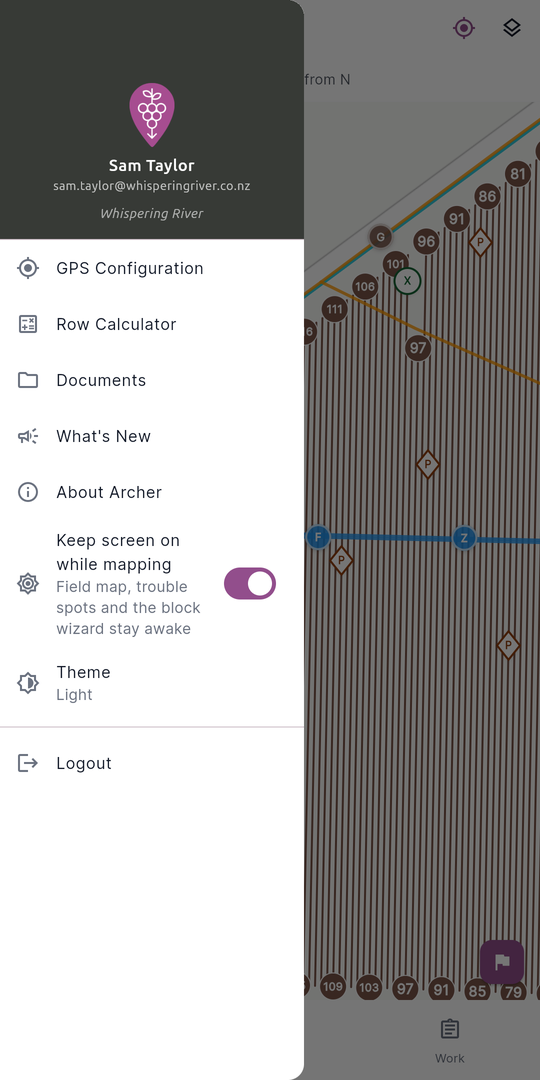
The top of the menu (the header) shows:
- The Archer brandmark.
- The name and email of the logged-in user.
- The current management group name underneath.
Below the header, a Management group section lists the groups you can work in, with a tick on the current one — tap another to switch (if there are many, More… opens the full list). It only appears when you have more than one group to choose from. See Key concepts for what a management group is.
Then these items, in order:
- GPS Configuration — connect to and configure your GPS receiver.
- Row Calculator — a helper for working out row spacing and counts.
- Documents (folder icon) — the document library of PDF guides and SOPs shared by your organisation. Documents stay readable offline once opened. See Documents.
- What's New — release notes and recent changes in the app.
- About Archer — the app version, with links to the Privacy Policy and Terms of Service.
- Keep screen on — a switch, off by default. When it's off, only the mapping screens stay awake. When it's on, the screen stays awake on every screen. In older versions of the app this is called Keep screen on while mapping.
- Theme — choose the app's appearance (see below). The current choice is shown underneath the label.
Then, after a divider:
- Reset Demo Account — shown only if you have a demo account (a red restart icon). Confirming rebuilds your demo organisation's data from scratch.
- Logout — sign out of the app. You'll be asked to confirm before you're signed out.
Theme (appearance)
You can switch the app between a light and dark look from the side menu.
- Open the side menu and tap Theme.
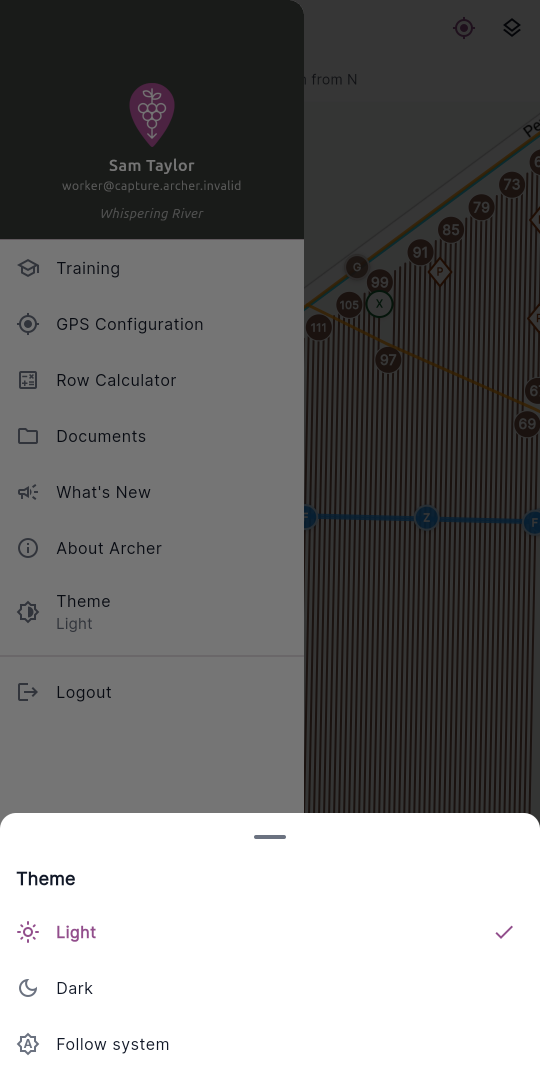
- A sheet slides up with three options:
- Light
- Dark
- Follow system — match whatever your phone is set to.
- Tap an option to apply it. The sheet closes and your choice is saved for next time. A tick marks the option that's currently selected.
Theme in the portal
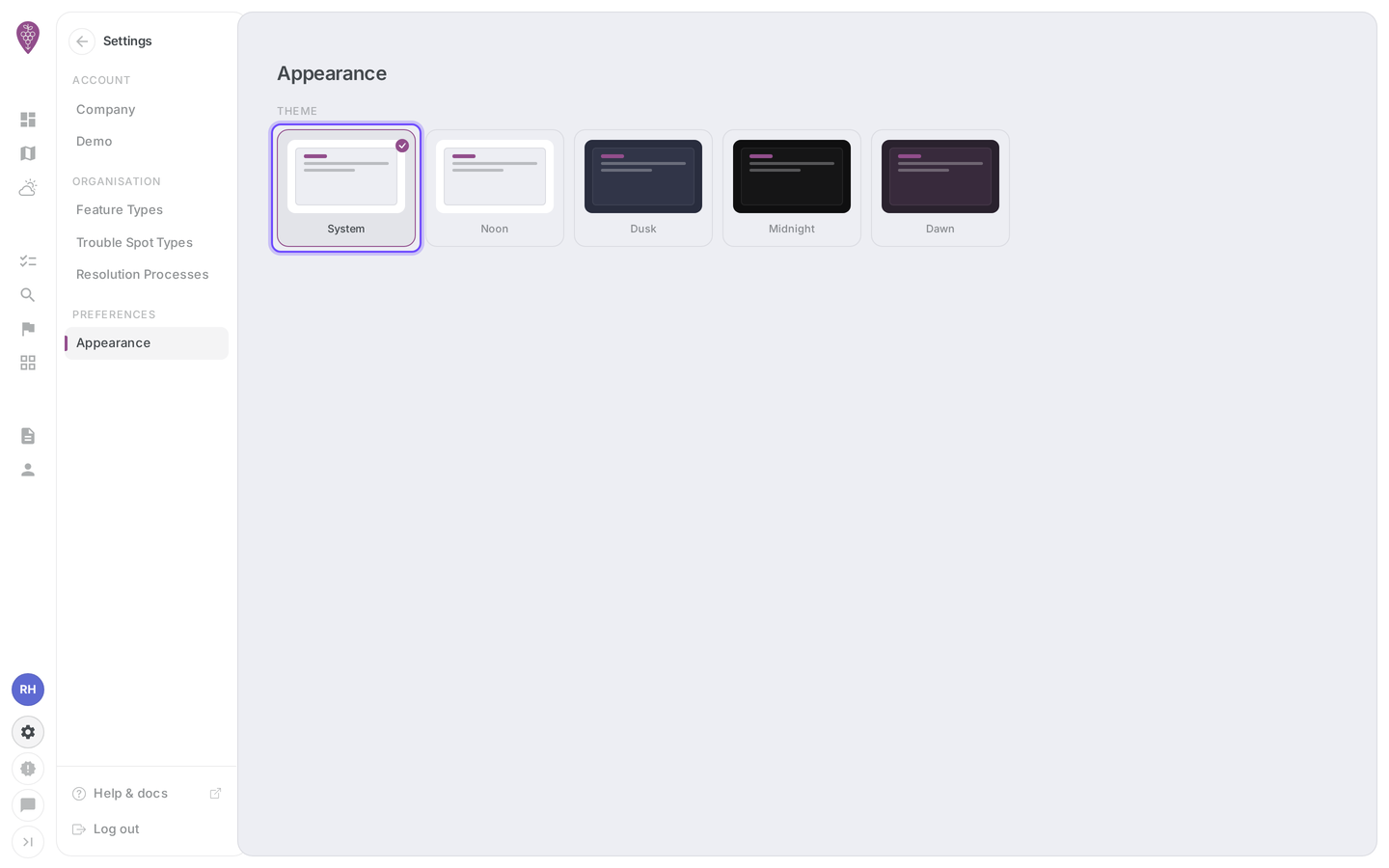
In the Archer portal, theme is set on the Appearance page (/settings), which sits inside the portal's grouped Settings navigation. The five themes — System, Noon, Dusk, Midnight, and Dawn — are presented in one row, where System mirrors your operating system's light or dark scheme. Click a theme to apply it immediately; the active theme is marked with a tick and remembered the next time you sign in.